Alerts
In plain words
Section titled “In plain words”An alert watches what your terminals print. When a line matches, ZestSSH can tell you in the notification center, play a sound, and color the matching text in the terminal. Use one to hear when a long build finishes, to spot errors scrolling past, or to notice a password prompt waiting in a tab you are not looking at.
Alerts are free on every plan. Earlier versions called them terminal triggers; they have nothing to do with a network’s triggers.
Set it up
Section titled “Set it up”On a computer
Section titled “On a computer”-
Open Alerts in the side rail, under Utilities, and click New alert.
-
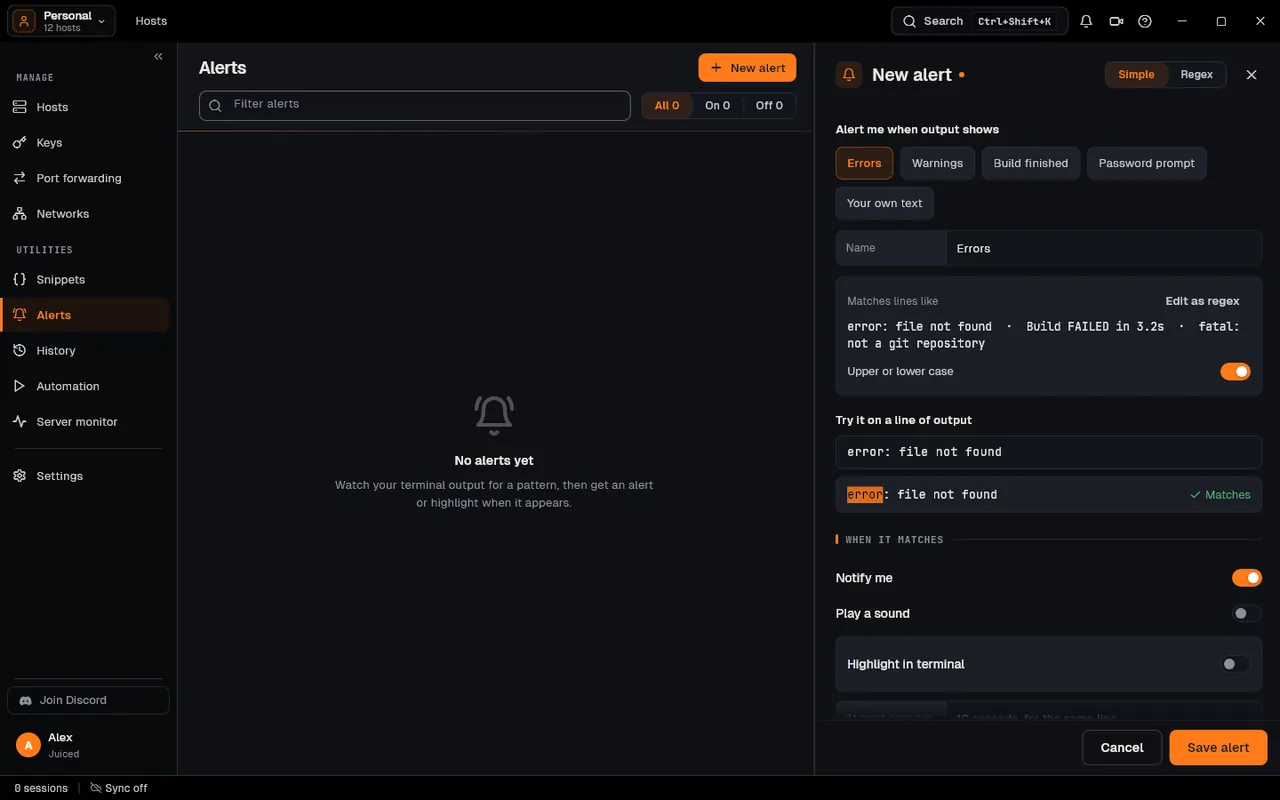
In Simple mode, under Alert me when output shows, pick Errors, Warnings, Build finished, Password prompt or Your own text (then type it under Text). Matches lines like shows lines it would catch; Upper or lower case ignores case.
-
Check it under Try it on a line of output: paste a line and see Matches or No match.
-
Under When it matches, turn on Notify me, Play a sound (with a notice) and Highlight in terminal (pick its color). At least one of Notify me and Highlight in terminal is needed. At most once per keeps a stack trace from sending a hundred notices.
-
Under Where, Watch All hosts or one host, then click Save alert.
For a pattern of your own, switch to Regex and type it under Pattern, for example \b(error|failed)\b, with Case sensitive on or off. Edit as regex turns a Simple choice into its pattern.
On a phone or tablet
Section titled “On a phone or tablet”-
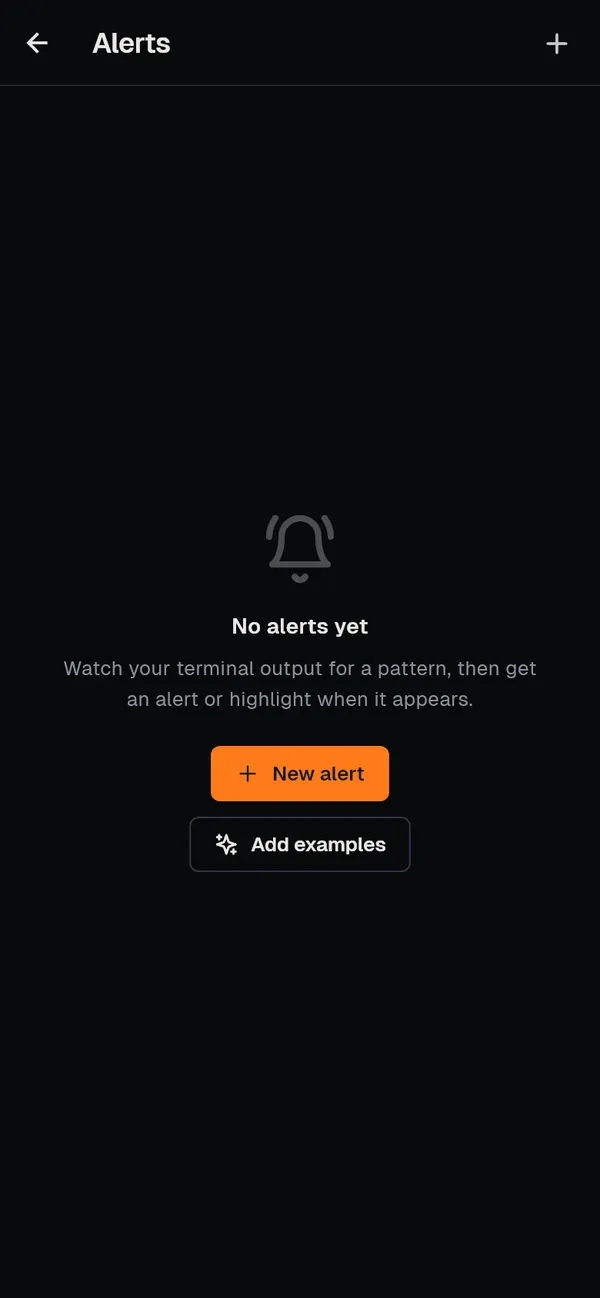
Open More, then Alerts, and tap New alert. With none yet, Add examples adds three to start from (Error, Build finished, Warning).
-
Fill in Name and Pattern (regular expression), and set Case sensitive.
-
Turn on at least one of Notify me, Play a sound and Highlight in terminal. Under Applies to, pick All hosts or one host, and save. Enabled turns an alert on or off.
How it works
Section titled “How it works”- Matching runs on your device, line by line. Output is split into complete lines (a line cut between two network packets is joined first), escape codes and colors are stripped, and each enabled alert for that host is tried against the visible text. A pattern that is not a valid regular expression is never used, so one bad alert cannot break the others. A leading
(?i)is read as “ignore case”, as other tools write it. See Alerts. - Repeats are held back. The same alert on the same line fires a notice at most once per 10 seconds; highlights are not limited.
- Notices. On a computer a notice goes to the bell and shows as a card in the corner of the window. On a phone it is also a system notification (on Android, in its own Terminal alerts channel), which names the alert, not the line, so a lock screen never shows your output. See Notifications.
- What is stored where. Alerts (name, pattern, actions, color, host) are in the app’s encrypted database and sync end to end encrypted with the rest of your personal space, so an alert made on your phone works on your computer. What a terminal prints is never stored or sent for an alert.
If something goes wrong
Section titled “If something goes wrong”- An alert never fires. Check that it is on (the switch in the list, or Enabled on a phone), that it watches the right host, and paste a real line into Try it on a line of output.
- No sound on a phone. Play a sound comes with a notification, so notifications must be allowed for ZestSSH in the system settings.
- Too many matches.
erroralso matches0 errors: use word boundaries such as\berror\b, or a longer phrase. - “Pick at least one action.” Turn on Notify me or Highlight in terminal.
Related guides
Section titled “Related guides”- Server monitor, for alerts about CPU, memory and disks
- Snippets and workflows
- History and suggestions
- Sync and backups