Networks and jump hosts
In plain words
Section titled “In plain words”A network is a place you work from, such as Home, Office or Cellular. ZestSSH notices which one you are on by itself and changes how each host is reached there: its address, its port, its user, its key, or the jump host it goes through. You save a host once, and it works from everywhere.
A jump host (also called a bastion) is a server you sign in to first, to reach servers behind it that are not on the internet. In a host’s settings it is Connect via (optional).
You want these when a server has one address at home and another away, when some servers sit behind one gateway, or when you use a VPN such as Tailscale.
Set it up
Section titled “Set it up”A jump host for one host
Section titled “A jump host for one host”- Save the jump host as a host of its own: New host on a computer’s Hosts page, or + on a phone’s Hosts tab. Give it its public address and a key.
- Open the host behind it and find Connect via (optional): on a computer, in the editor’s Network section; on a phone, under Show advanced options.
- Pick the jump host, then give the host its address as the jump host sees it (for example
192.168.20.5), and save.
When you connect, ZestSSH signs in to the jump host first, then to the host through it. Connect via needs Squeezed.
A network, on a computer
Section titled “A network, on a computer”-
Open Networks in the side rail, under Manage.
-
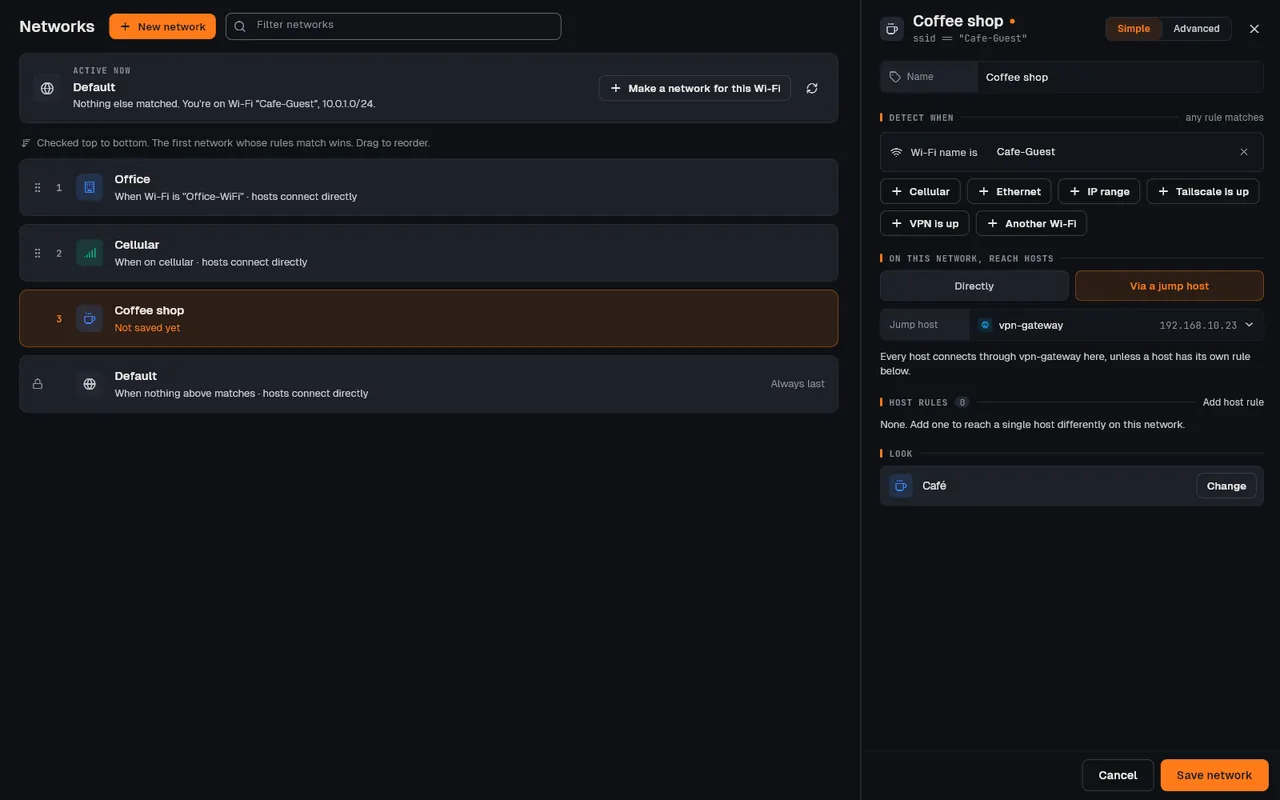
The Active now card says which network is in use and why. To make one for the place you are now, press Make a network for this Wi-Fi (or Make a network for this one); otherwise press New network.
-
Give it a Name. Under Detect when, add the rules that tell this place apart: IP range (for example
192.168.20.0/24), Wi-Fi name, Cellular, Ethernet, VPN is up or Tailscale is up. Any one rule matching is enough. -
Under On this network, reach hosts, choose Directly, or Via a jump host and pick the Jump host every host should go through here.
-
To reach one host differently here (another address, or no jump host), use Add host rule.
-
Press Save network. The list is checked top to bottom and the first match wins: drag a network to change its place. Default is always last.
A network, on a phone or tablet
Section titled “A network, on a phone or tablet”-
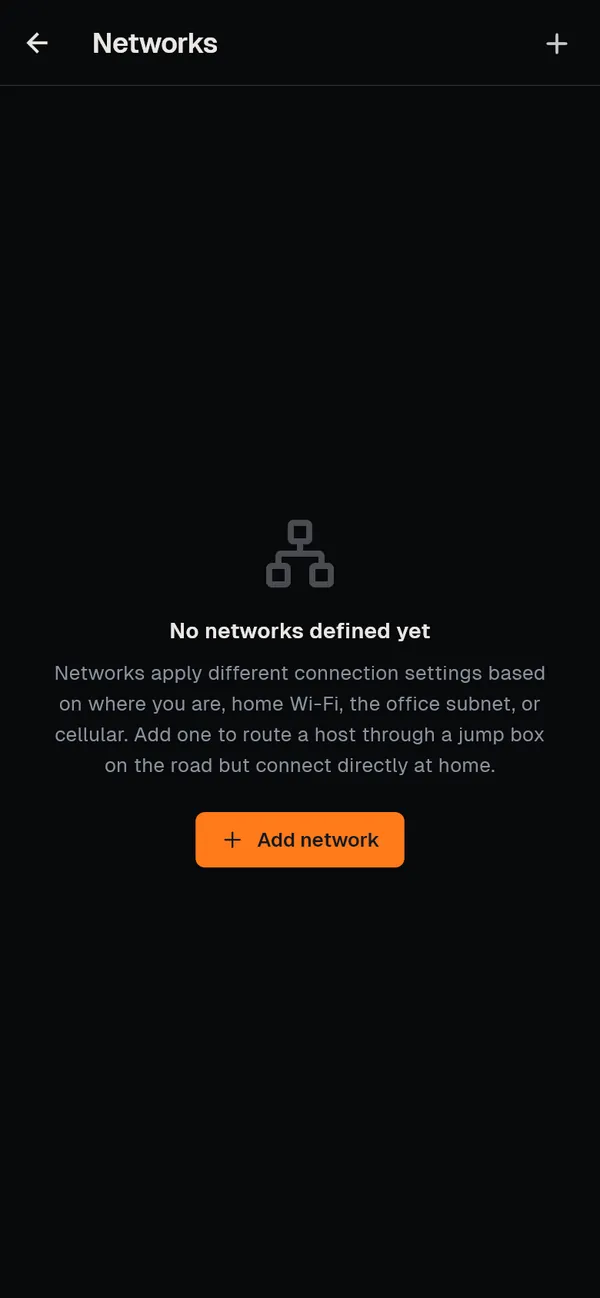
Open More, then Networks, and tap Add network.
-
Name it and add its triggers: a Subnet, On cellular or a Connection type. A phone never reads Wi-Fi names (Android and iOS give them only to apps with location access, which ZestSSH does not ask for), so tell places apart by subnet.
-
Save. A banner at the top of the home screen shows the network in use, with Auto or Forced to pick one by hand.
How it works
Section titled “How it works”- Detect, match, resolve. On every connect ZestSSH reads the device’s IP addresses, its connection type and, on a computer, the Wi-Fi name. It checks your networks top to bottom and takes the first whose trigger matches, else Default. The host’s own settings are then combined with that network’s rule for the host, and the network’s jump host, to give the address, port, user, key and route used. The same happens for Reconnect, a split, automation and Server monitor. See Networks and Triggers and matching.
- Subnets are the reliable trigger. A subnet trigger matches any address the device has right now inside the CIDR range, IPv4 or IPv6. A Wi-Fi name can be copied by any access point, so prefer a subnet where you can.
- The jump host cannot read your session. With Connect via, ZestSSH opens a
direct-tcpipchannel through the jump host’s SSH connection and runs a second, separate SSH connection inside it, with the target’s own host key check and sign-in (likessh -J). The jump host passes encrypted bytes along. Several hops chain the same way. See Jump host and the whitepaper, section 8, SSH protocol support. - What is stored where. Networks and host rules are saved in the app’s encrypted database and, if you use sync, synced end to end encrypted like your hosts. Nothing about which network you are on leaves the device.
- Per-host rules can change the address, port, user, key or jump route on one network, or stop a host being dialled there at all. See Per-host overrides.
If something goes wrong
Section titled “If something goes wrong”- The wrong network is used. Open Networks on a computer: Active now says which network matched and why. Press Re-detect after changing Wi-Fi or turning a VPN on. If two networks could match, the higher one wins: drag the one you want above.
- A Wi-Fi name rule never matches. On a phone it never can. On a computer the system may ask for location access before it gives the name; use an IP range rule instead.
- “Connect Via needs Squeezed. Connecting directly instead.” The host has a jump host set (by sync or an import), but this device is on the free plan, so it connects directly.
- The jump host connects but the host behind it does not. The host’s address must be the one the jump host can reach (often a private address), and the jump host must allow forwarding (
AllowTcpForwardingin its sshd). See Connection issues.
Related guides
Section titled “Related guides”- Hosts and connecting
- Port forwarding
- Server monitor
- Setting up jump hosts, the longer walkthrough