Keys
In plain words
Section titled “In plain words”A key in ZestSSH is how a host signs you in: a username plus an SSH key, or a username plus a password. You make or import it once, and every host that uses it picks it in its Key field. Change the key, and every host using it changes with it.
SSH keys are safer than passwords: nobody can guess one, and the secret half never leaves your device. The Keys page lists them all: your SSH keys, your Saved passwords, the keys your SSH agent holds, and Certificates.
Set it up
Section titled “Set it up”Make or import a key on a computer
Section titled “Make or import a key on a computer”-
Open Keys in the side rail and press New key.
-
Choose Generate SSH key (Ed25519) (the best choice), Generate SSH key (ECDSA) or Generate SSH key (RSA-4096). Give it a Key name and press Generate key pair.
-
Press Save & use this key, then save the key form. To bring a key you already have instead, choose Import or paste key, then Set up SSH key and the Paste or Import tab. An encrypted key asks for its Key passphrase.
-
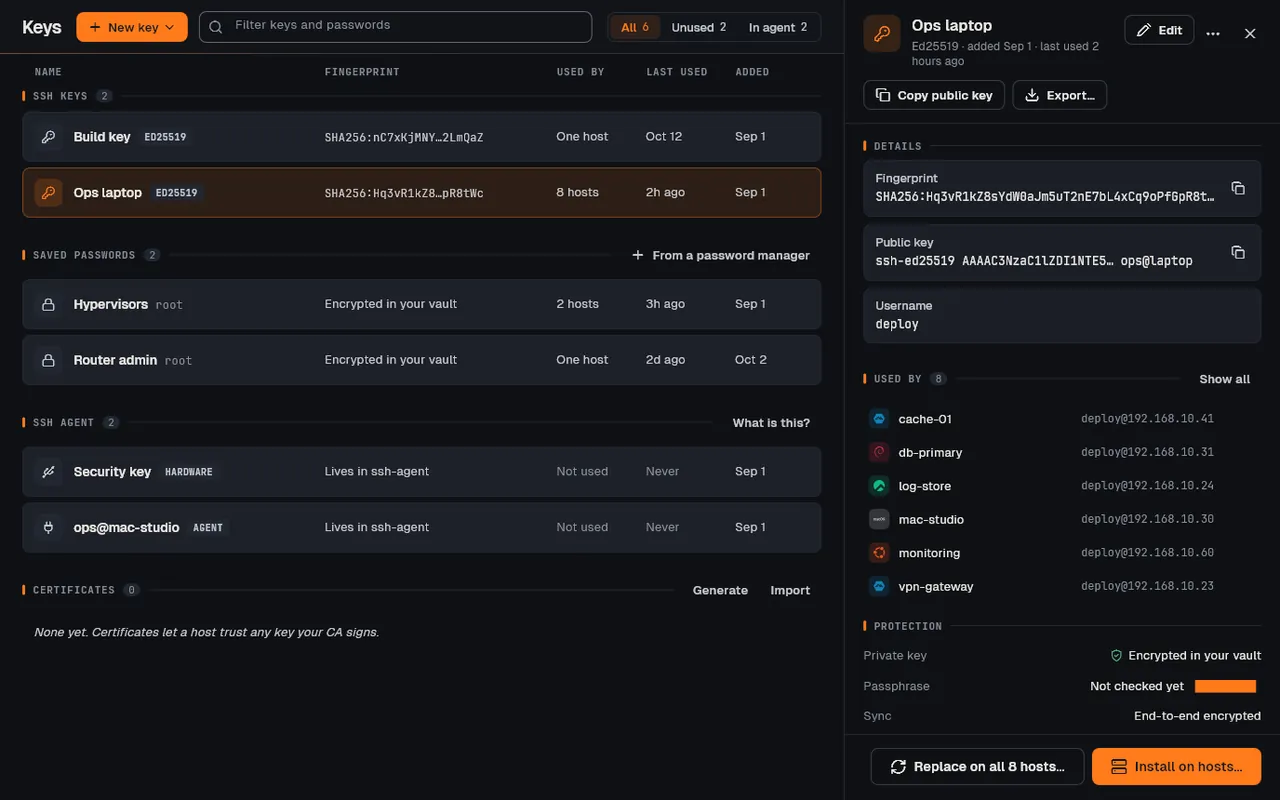
Select the key. Beside the list, Copy public key copies its public line, Export… saves it to a file, Add to agent loads it into this computer’s ssh-agent, and Edit opens its form.
-
Press Install on hosts… at the foot of its details, tick the hosts, and confirm. Each host says whether the key was added, was already there, or why not.
Make or import a key on a phone or tablet
Section titled “Make or import a key on a phone or tablet”-
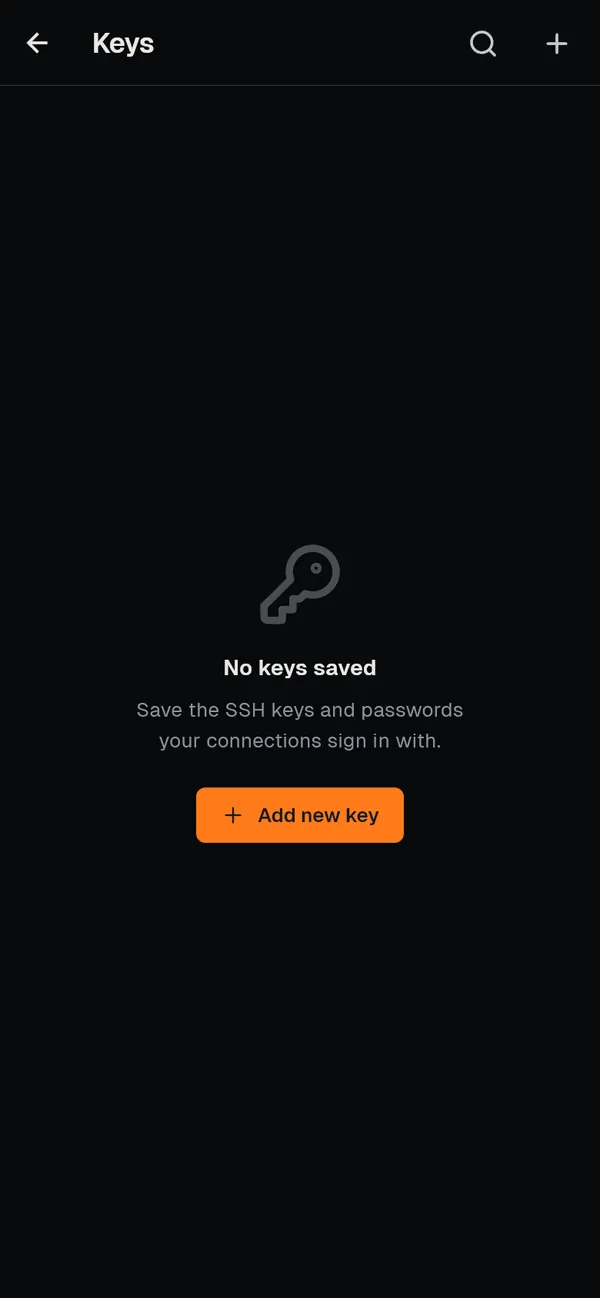
Open More, then Keys, and tap + (or Add new key).
-
Fill in Display name and Username, and choose SSH key.
-
Tap Generate new key, then Generate key. To bring your own, tap Paste key or Import from file instead.
-
Tap Save key. To put it on servers, open the key and tap the server icon (Install on hosts…).
Passwords and passphrases
Section titled “Passwords and passphrases”- A password for a host is a key too: choose Password as its kind. It shows under Saved passwords, and Move to a password manager can hand it to 1Password, Bitwarden or KeePassXC, so the app fetches it when you connect.
- A key’s Passphrase row (under Protection) can Add one, Change or Remove it. A new passphrase is typed twice (New passphrase, Type it again).
How it works
Section titled “How it works”- Where secrets live. Private keys, passwords and passphrases are kept in the system’s secure storage (Android Keystore, iOS and macOS Keychain, Windows DPAPI, the Linux Secret Service). The app’s database holds only the name, type, fingerprint and public line. With sync on, keys travel end to end encrypted; ZestSSH Cloud cannot read them. See Key management and the whitepaper, section 5, Key hierarchy and derivation.
- Signing in. The client proves it holds the private key by signing the session; the server checks the signature against
~/.ssh/authorized_keys. RSA keys sign with SHA-512 or SHA-256. Supported types: Ed25519, RSA, ECDSA P-256/384/521, and PuTTY.ppkfiles on import. See Public key and Supported key types. - Install on hosts does what
ssh-copy-iddoes: it signs in with the host’s current key and appends the public line to the account’s authorized keys, on Linux, BSD and macOS hosts. See Install a key on hosts. - Replacing a key. The button at the foot of a key’s details (for example Replace on all 8 hosts…) puts a new key on each host, proves it signs in, and only then takes the old one off, so no host is left locked out.
- SSH agent and FIDO2 (computers). New key, then Connect via ssh-agent, lists the keys your system’s agent, 1Password or Bitwarden holds. Only the public key is saved; the agent signs, and a FIDO2 token (
sk-keys, a YubiKey for example) asks for a touch. See SSH agent and FIDO2 hardware keys.
If something goes wrong
Section titled “If something goes wrong”- The server refuses the key. The public line must be in
~/.ssh/authorized_keysof the user the key names, and that file must bechmod 600with~/.sshat700. See Connection issues. - “Incorrect passphrase. Please try again.” The passphrase is the one the key was saved with, not your account password. After three wrong tries the import stops.
- Install on hosts skips a host. It needs a host it can already sign in to, running Linux, BSD or macOS; it says why for each host it skips.
- Add to agent is missing. The button shows only when this computer has an SSH agent running (on Windows, the OpenSSH Authentication Agent service).