Import from other apps
In plain words
Section titled “In plain words”You do not have to type your servers in again. Import hosts reads them from the places they already live: an SSH config file, PuTTY’s saved sessions, MobaXterm, SecureCRT, Termius (through a free export tool), a CSV spreadsheet, a plain list you paste, a host someone shared with you, or a cloud account such as AWS, DigitalOcean, Hetzner, Azure, Tailscale or Proxmox.
You see every host before anything is added, and you choose which ones come in. Keys come over separately, on the Keys page.
Set it up
Section titled “Set it up”On a computer
Section titled “On a computer”-
On the Hosts page, open the arrow beside New host and choose Import hosts.
-
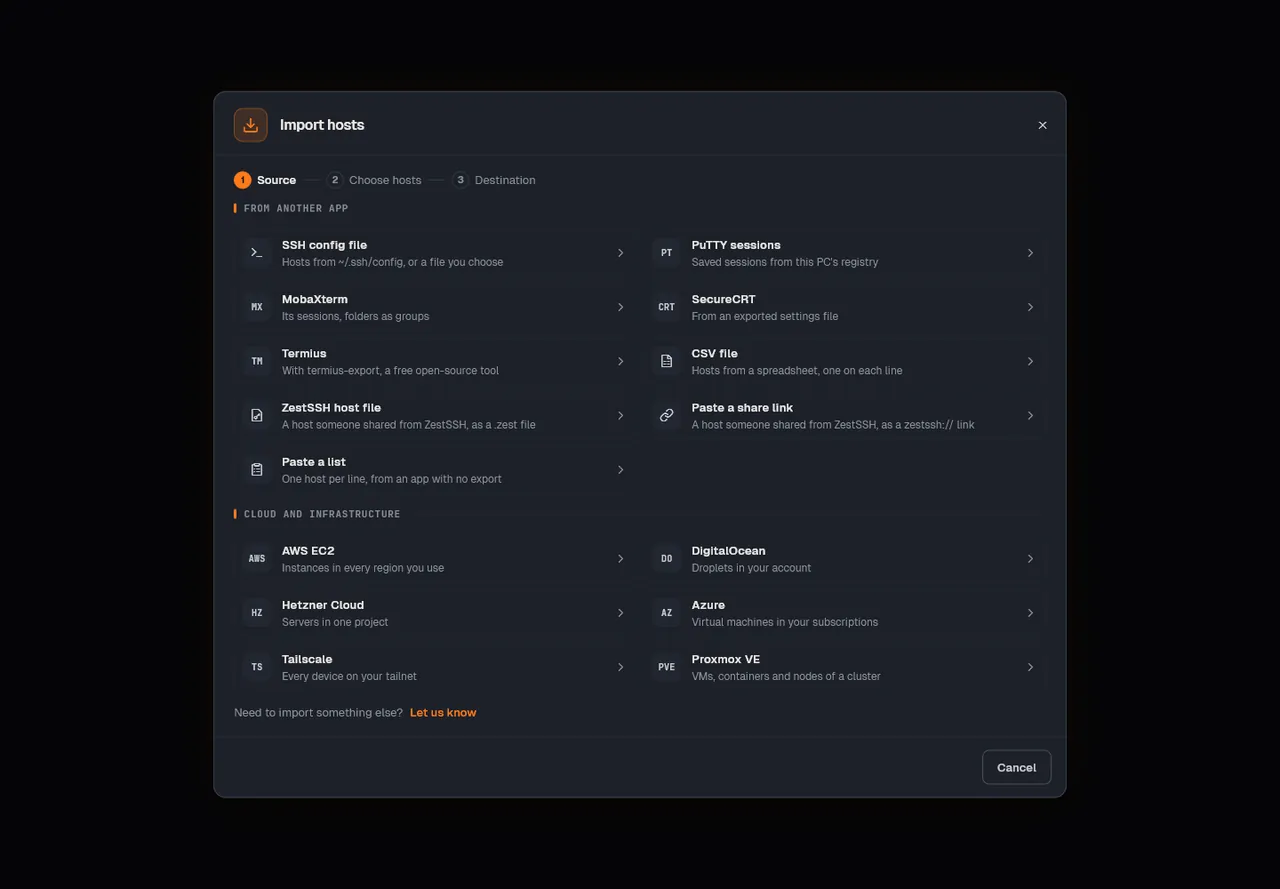
Pick where your hosts are now. Under From another app: SSH config file, PuTTY sessions (Windows), MobaXterm, SecureCRT, Termius, CSV file, ZestSSH host file, Paste a share link or Paste a list. Under Cloud and infrastructure: AWS EC2, DigitalOcean, Hetzner Cloud, Azure, Tailscale or Proxmox VE.
-
For a file, choose it (an SSH config opens
~/.ssh/configby itself; Choose file picks another). For a cloud, give it an Account name, paste a read-only token (How to make one shows how), and press Connect and scan.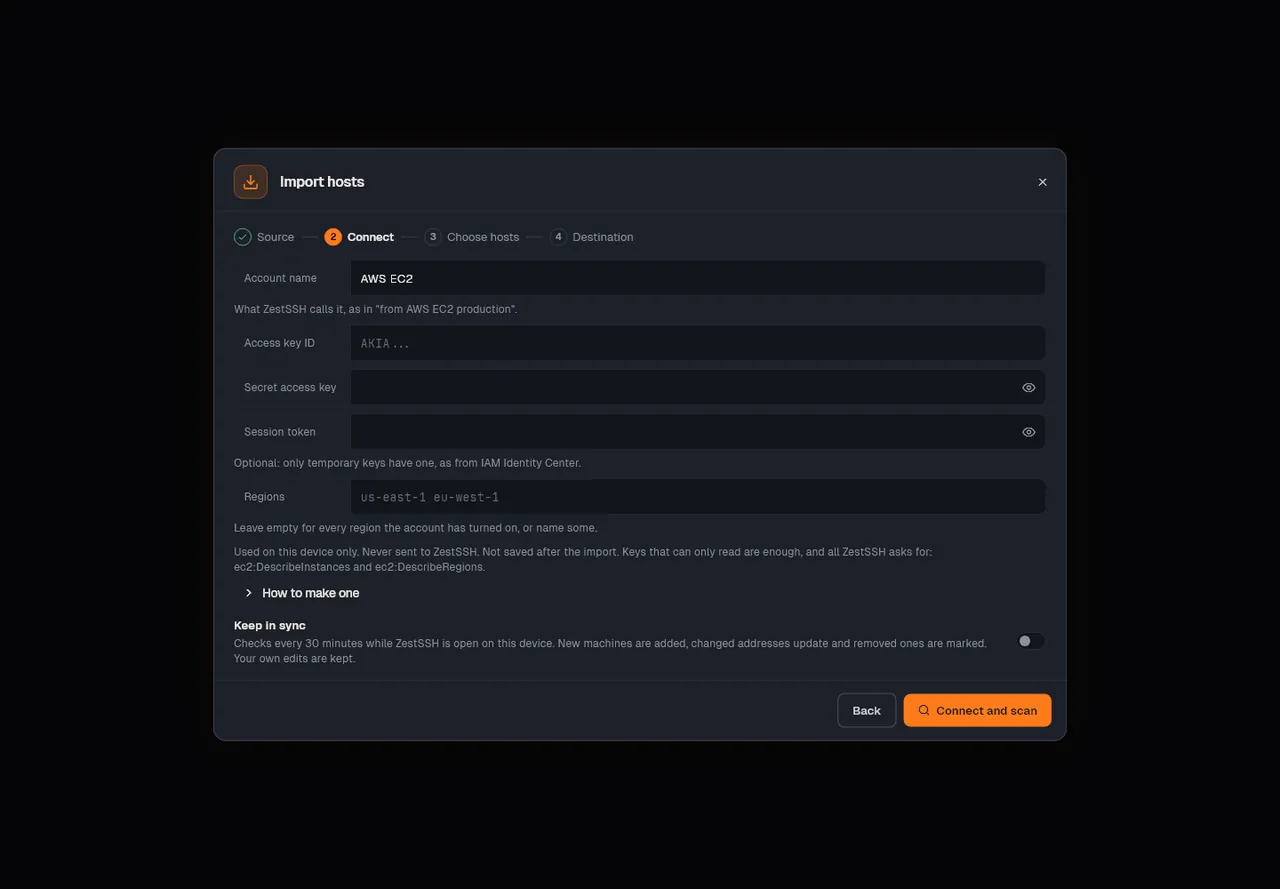
-
In Choose hosts, untick what you do not want. A host that is already here says Already here.
-
In Destination, under Where they go, choose Personal (or a team vault), and a key in Sign in with. Then press the import button, which names how many hosts it adds.
On a phone or tablet
Section titled “On a phone or tablet”- Open More, Settings, Data, then Import data.
- Choose SSH config file, CSV file, Restore from backup (.zest), PuTTY private key (.ppk), or Hosts from a cloud, which opens the full Import hosts dialog with every source above.
- Tick the hosts you want and import them.
From a specific app
Section titled “From a specific app”- Termius: choosing Termius opens Moving from Termius; Open termius-export points to a free, open-source tool that writes your Termius hosts as an SSH config file, which you then import.
- JuiceSSH: it has no export ZestSSH can read. Copy your hosts into Paste a list, one per line as
user@host:port. See Migrating from JuiceSSH. - PuTTY: PuTTY sessions reads this PC’s registry; import your
.ppkkeys on the Keys page. See Replacing PuTTY.
How it works
Section titled “How it works”- Everything is read on your device. Files are parsed locally. A cloud token is used on this device only to list machines, never sent to ZestSSH, and not saved after the import unless you turn on Keep in sync, which checks every 30 minutes while the app is open. Ask for read-only scopes:
ec2:DescribeInstances,droplet:read, Proxmox’s PVEAuditor role. See Import from a cloud. - SSH config.
Hostblocks become hosts;HostName,Port,User,ProxyJumpandIdentityFileare read. AUserbecomes a key on the Keys page named after the host, followed by “(imported)”.ProxyCommandand forwarding lines are read but not used. Wildcard blocks such asHost *are skipped. Private keys anIdentityFilenames are copied only if you tick the offer, which starts unticked. See Importing from other apps. - Duplicates. A machine whose address is already saved is offered as Already here; ticking it links the existing host instead of adding another. A cloud re-scan updates what you have not changed yourself.
- Proxmox uses its own certificate, so the first scan stops at Check this certificate with its SHA-256 fingerprint to compare with the node’s.
- Shared hosts. A
.zesthost file or azestssh://link shows the host first (Add this connection?) and adds nothing until you agree. A sealed file asks for its password. - First run. A new install with no hosts offers Let’s get you connected, with Import from SSH config and Scan the local network, which tries port 22 on your own
/24only after you press start.
If something goes wrong
Section titled “If something goes wrong”- Hosts are missing after an SSH config import. Wildcard blocks, invalid addresses and invalid ports are listed as skipped with the reason.
Includelines andMatchblocks are not followed: import the included file on its own. - A cloud scan fails. The token needs list rights only, and a wrong region list hides machines: leave Regions empty for every region. The error has Copy details.
- Imported hosts ask for a password. The import made a key with the user but no SSH key. Open it on the Keys page and add the key.
- A PuTTY key will not import. Keys with a passphrase go through the Keys page, not Import data. See Import failures.
Related guides
Section titled “Related guides”- Hosts and connecting
- Keys
- Sync and backups
- Migrating from Termius, the longer walkthrough