Team rules
In plain words
Section titled “In plain words”A team’s rules say what its members need to join it and to keep syncing it. Owners set them, all at once. Every member can read them.
They come in two groups, by who checks them:
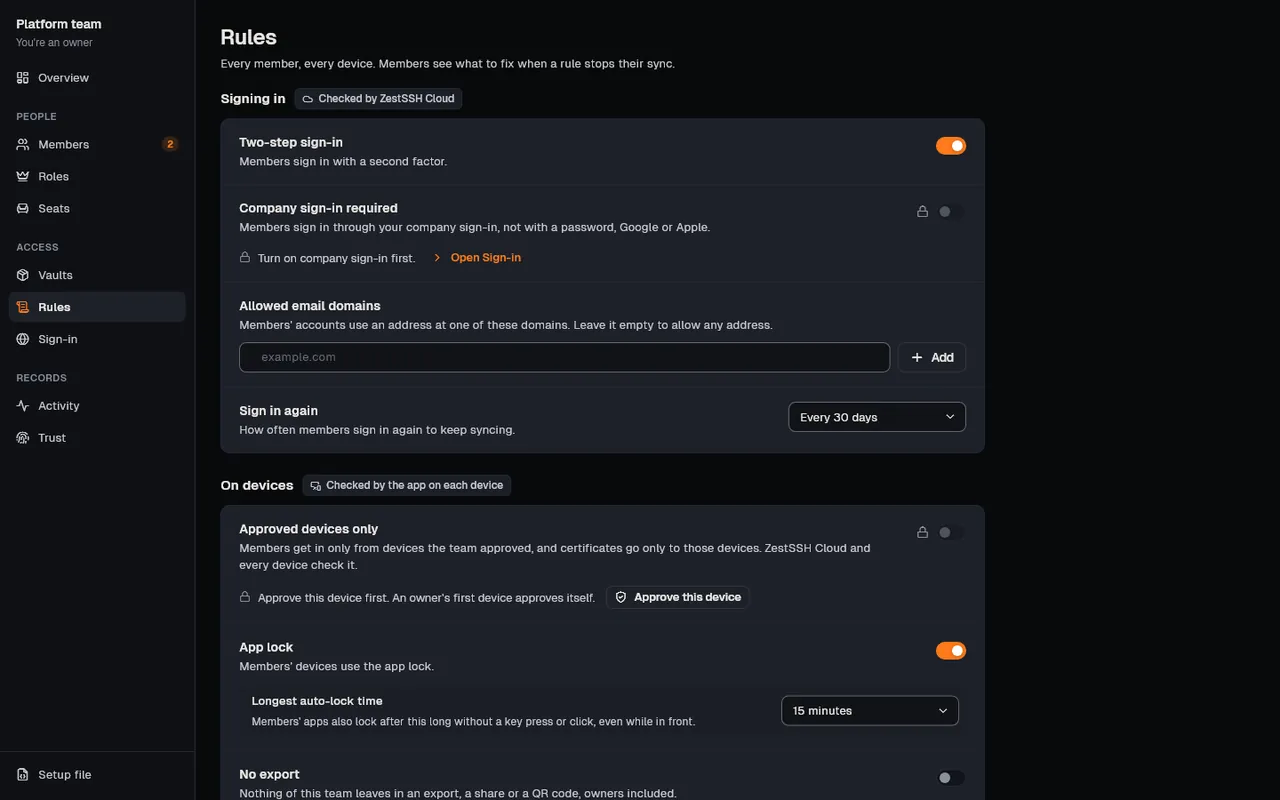
- Signing in, Checked by ZestSSH Cloud: Two-step sign-in, Company sign-in required, Allowed email domains and Sign in again.
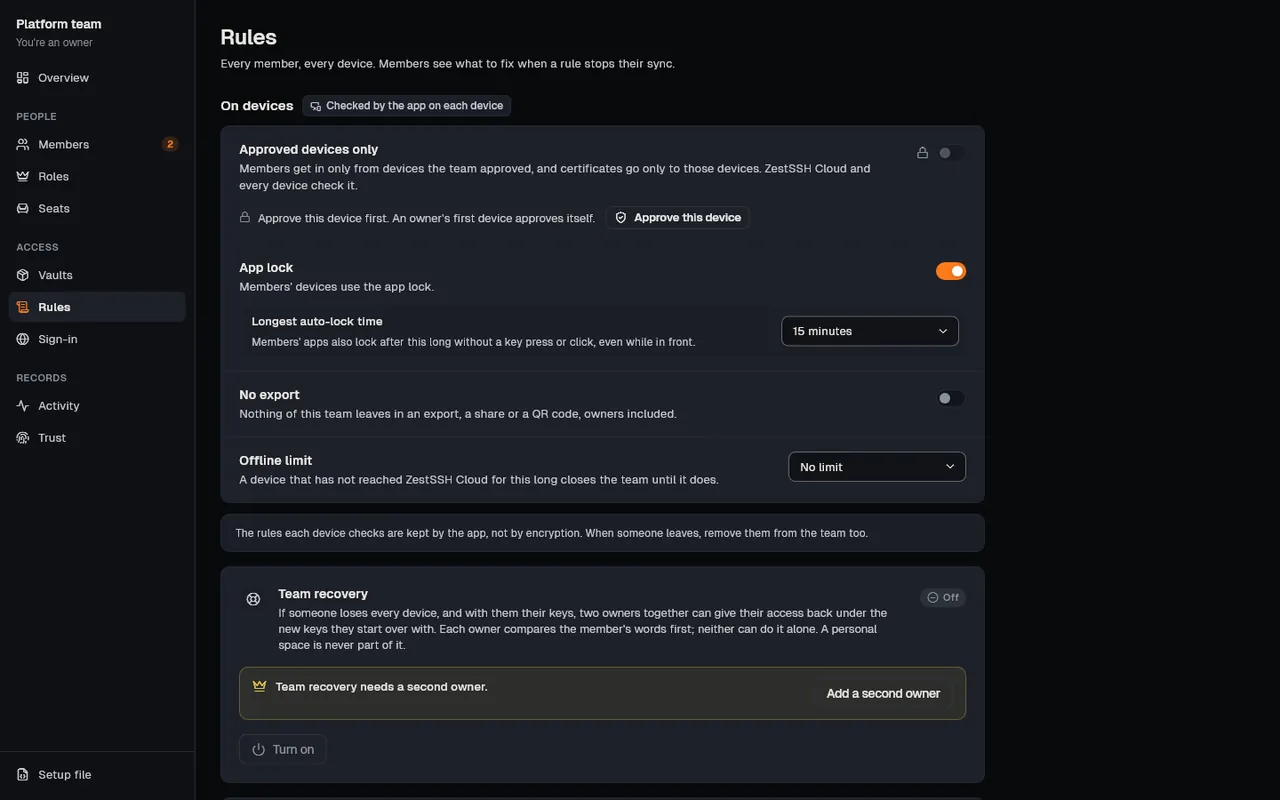
- On devices, Checked by the app on each device: Approved devices only, App lock (with a Longest auto-lock time), No export and Offline limit.
A member who falls short loses nothing: what is on the device still works, but the team stops syncing for them until they fix it, and the app says how. A new team has no rules.
Set it up
Section titled “Set it up”Open the rules
Section titled “Open the rules”-
On a computer, open the team, choose Team in the rail, then Rules. On a phone, open More, tap the team under Team, then tap Rules.
-
Only owners change the rules. Everyone else sees the same page, read only.
Change them (owners)
Section titled “Change them (owners)”-
Under Signing in, switch on what you need. Allowed email domains: type a domain and choose Add, and keep your own domain on the list. Sign in again: pick how often, from Every hour to Every 365 days, or Not required.
-
Company sign-in required works only while company sign-in is on: until then the row says Turn on company sign-in first., with Open Sign-in. It needs Business, and you must have signed in through company sign-in yourself.
-
Under On devices, switch on App lock and pick a Longest auto-lock time, switch on No export, and pick an Offline limit (No limit, or 1 to 30 days).
-
Approved devices only needs this device approved first (Approve this device) and one more owner device approved, so that losing one does not lock the owners out.
-
Choose Save rules. If this device does not meet the new app lock rule yet, you see This device does not meet them yet: choose Save anyway and fix the lock after.
-
If Confirm it’s you appears, choose Sign in again. You see Rules saved when it worked.
When a member falls short
Section titled “When a member falls short”- The team’s banner says what is missing, one line for each rule, with a button where there is a fix: Open account and Sign in again for two-step sign-in, Sign in with SSO, Ask to be approved, or Security settings for the app lock.
- Once they meet the rule, the team syncs again by itself.
How it works
Section titled “How it works”- One signed entry. The rules are a single entry in the team’s record, signed by the owner who saved them with their Ed25519 account key. Every member’s device checks it, and ZestSSH Cloud refuses rules the saving owner does not meet themselves.
- Signing in is the server’s check. ZestSSH Cloud compares each request with how the member last really signed in: with a second factor, through company sign-in, at an allowed domain, and how long ago. A computer that keeps its session going does not count as signing in again. See Team rules and Company sign-in (SSO).
- Device rules are the app’s check. App lock, no export and the offline limit are kept by the app on each device, which ZestSSH Cloud sends with the list of teams even while it holds a member back. They are not encryption: a device that holds the team’s keys could, with effort outside the app, read what it holds. When someone leaves, remove them from the team too.
- The offline limit uses a clock you cannot turn back. A clock more than five minutes behind the latest time the device has seen counts as past the limit. For a place with no internet at all, an owner signs an offline pass screen to screen, which never goes through ZestSSH Cloud and lasts at most 7 days.
- Approved devices. Each device makes an Ed25519 key of its own, kept in the system’s secure storage, in no sync or backup. The record lists each member’s approved device keys; approving takes comparing three words on two screens. ZestSSH Cloud then holds every request to the device its sign-in came from. See Approved devices.
- The full design is in the whitepaper, section 13, Teams.
If something goes wrong
Section titled “If something goes wrong”- “You do not meet these rules yourself yet”, and what is missing. ZestSSH Cloud refuses rules you do not meet. Meet them first: for two-step sign-in, turn it on, then sign in again with it.
- “Add your own domain (northwind.example) as well, or you would stop syncing this team yourself.” Your own address’s domain must be on Allowed email domains.
- Sign in with SSO first: you must meet this rule yourself. Sign in through company sign-in before you turn on Company sign-in required.
- A member’s team shows Closed until online. The device was away from ZestSSH Cloud longer than the Offline limit. It opens again as soon as the device reaches ZestSSH Cloud, or with Offline pass from an owner.
- Approved devices only stays locked. The row says what is missing: approve this device, or approve one more owner device. Keep at least two owner devices approved: if every one is lost, nobody can manage the team again.