Create a team and invite people
In plain words
Section titled “In plain words”A team is a shared space next to your own Personal space. Its members share hosts, keys, snippets and port forwards in shared vaults, and everything in a vault is encrypted on their devices before it leaves them.
Adding someone takes two steps. You invite them and they accept. Then their keys are checked, and only then do you let them in. Nothing of the team is shared with them before that.
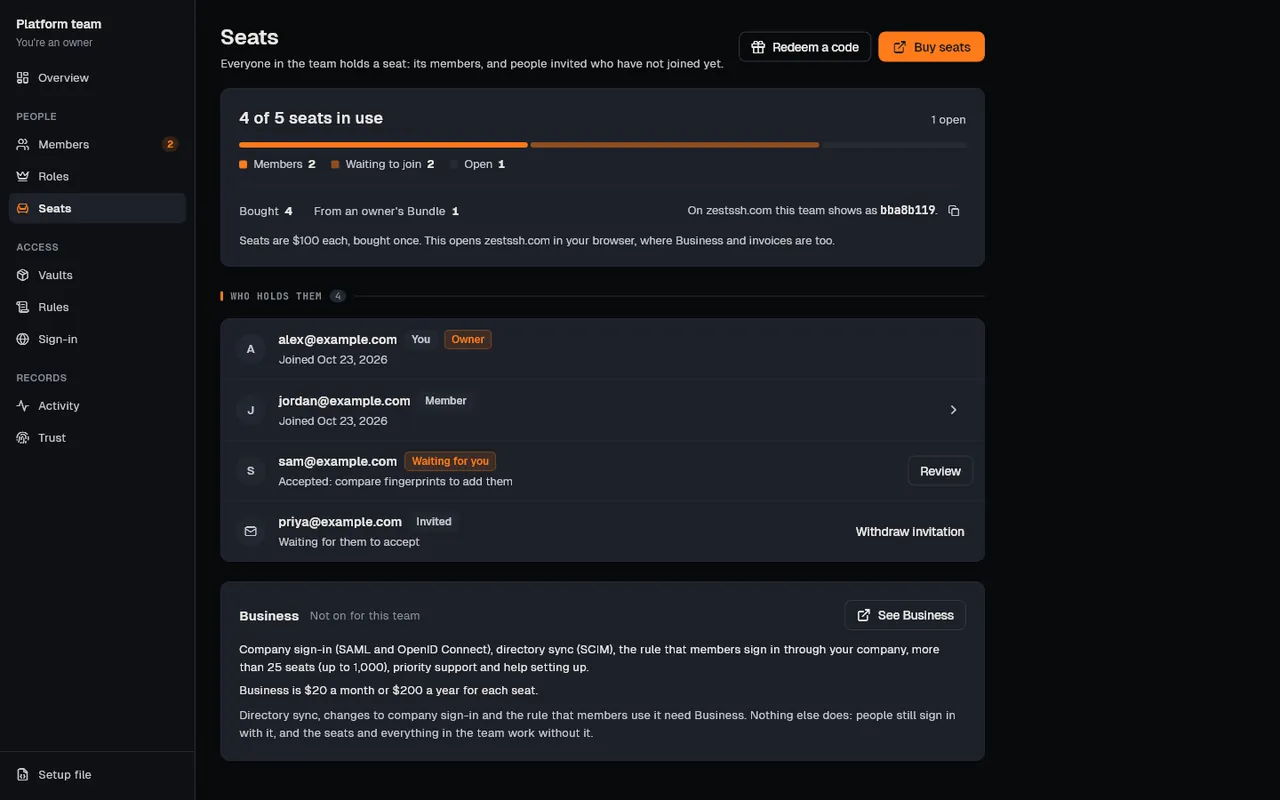
Everyone in a team holds a seat, you included. Team seats are $100 each, paid once, for 2 to 25 seats. Business ($15 a seat a month, or $150 a seat a year) adds company sign-in, directory sync and more than 25 seats. You want a team when more than one person needs the same servers.
Set it up
Section titled “Set it up”Before you start
Section titled “Before you start”- Sign in to your ZestSSH account and set up sync on the device, then let it sync once. Your team keys are made then. Sync itself is free.
- Make sure the people you invite have a ZestSSH account at the address you invite.
Create the team
Section titled “Create the team”-
Open the space switcher: on a computer, in the bar at the top of the window; on a phone, tap the name at the top of the Hosts tab.
-
Choose Create a team, type the Team name and choose Create team. ZestSSH switches to the team. It starts with you as its owner, one vault named Shared and one role named Member.
-
Buy seats, on a computer: open Team in the rail, then Seats, and choose Buy seats. It opens zestssh.com in your browser. A seat code goes in Redeem a code. Phones and tablets show the seats but sell nothing.
Invite someone
Section titled “Invite someone”- On the team’s Overview or Members page, choose Invite people. On a phone, use Invite people on Overview, or Invite someone under Invitations on Members.
- The dialog is named after your team, for example Invite to Example Ops. Choose Email and type their address under Email addresses (several addresses with the same offer are fine), or choose Code or QR.
- With Code or QR, ZestSSH makes a one-time code at once. Pick How long it works (1 hour to start), then Copy code or Copy link, or let them scan the QR code with ZestSSH on their phone. Give it to them the way you would give a password.
- Under What they get (for a code, choose Change first), pick the Role, a level for each vault under Vaults, and when Access ends (Never, or Pick a date).
- For email, choose Send invitation (Send invitations for several). For a code, choose Done when you have given it to them. The dialog says how many seats this takes before anything is sent.
Let them in
Section titled “Let them in”-
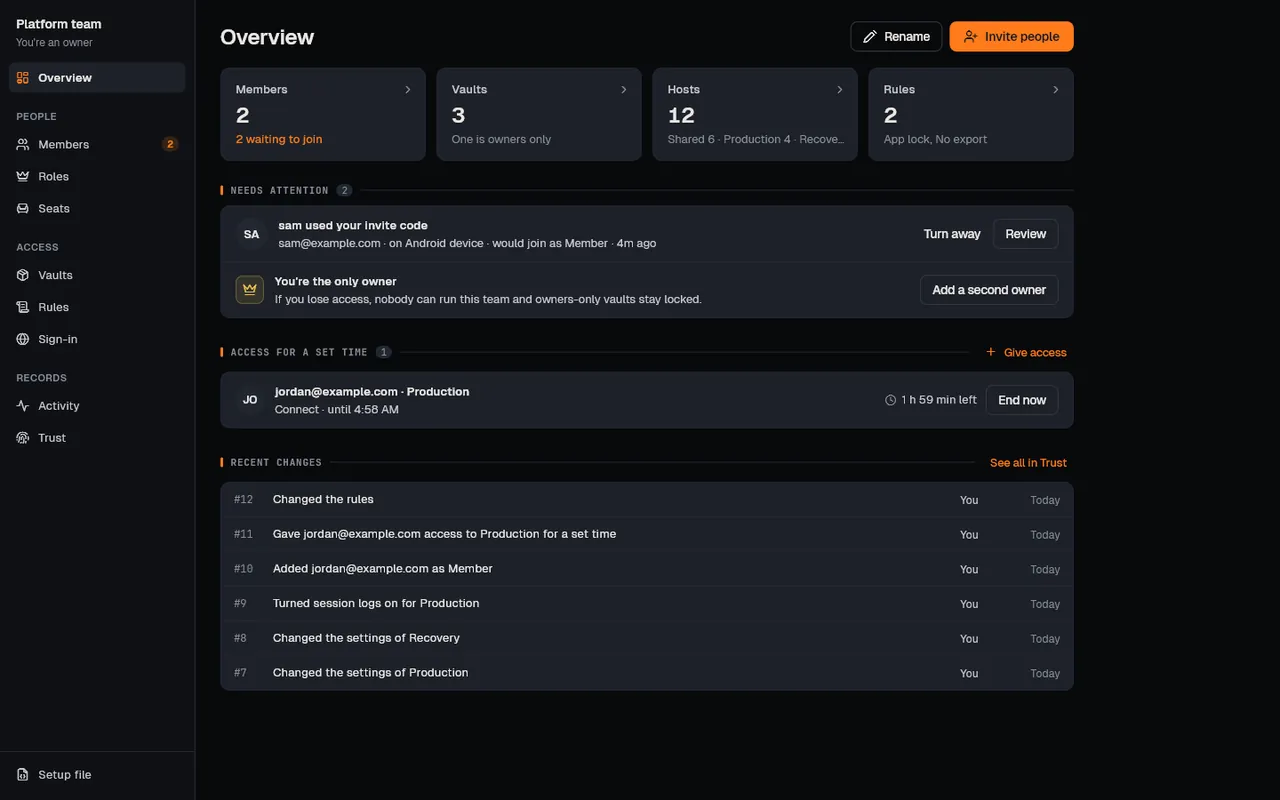
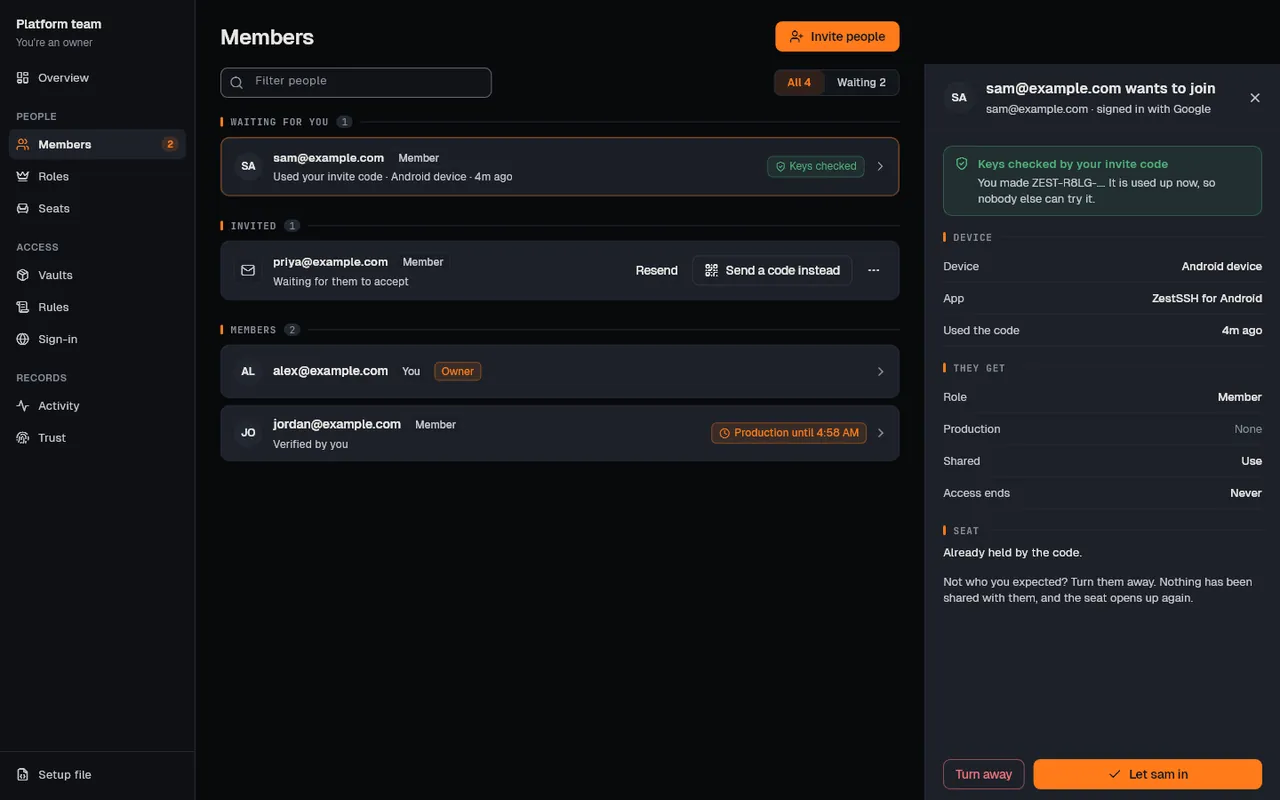
When they accept or use the code, they show under Needs attention on Overview and under Waiting for you on Members.
-
Someone who joined with your code shows Keys checked: choose Review, then Let sam in (with their name). There is nothing to compare.
-
Someone you invited by email: call them or meet them, choose Compare and add, and have them read the eight words ZestSSH shows them. If every word matches, choose It matches, add them. If any word differs, choose Cancel.
-
If Confirm it’s you appears, choose Sign in again. Adding someone needs a sign-in from the last 10 minutes.
How it works
Section titled “How it works”- Keys made on your device. The team’s key and each vault’s key are 32 random bytes made on a member’s device. ZestSSH Cloud holds them only sealed to each member’s X25519 account key (an ephemeral X25519 key, HKDF-SHA256 and AES-256-GCM per copy), each copy signed by whoever sealed it. A device keeps a key only when an account it trusts signed the copy and the key matches the commitment in the team’s record.
- A signed record. Every change to who is in the team and what they may do is an entry in the team’s record, signed with its author’s Ed25519 key and chained to the entry before by its SHA-256 hash. Every member’s app checks each entry against the same rules the server applies, so ZestSSH Cloud cannot add a member or promote anyone. The Trust page lists the entries as your device checked them.
- Why you compare fingerprints. A new member’s public keys reach you through ZestSSH Cloud, which could show you a key of its own. Their fingerprint is SHA-256 over both public keys, shown as eight BIP-39 words (88 bits) or 60 digits. Reading the words over a call proves the keys are theirs. See Why you compare fingerprints.
- What the code proves. An invite code is 100 random bits made on your device. ZestSSH Cloud gets only a lookup id derived from it. Both devices check each other’s keys with a MAC key derived from the code, which takes the place of comparing words. See What the code proves.
- What ZestSSH Cloud sees. Who is in each team and their roles, vault access, the record and the rules; each item only as an encrypted record with an opaque id. The team’s name, vault names and role names are encrypted. See Teams overview.
- Seats. Members, suspended ones too, open invitations and waiting codes each hold a seat. A purchase holds its seats while it waits to be paid. While a team has more people than seats, nothing is lost, but new items and invitations wait. See Seats and billing.
- The full design is in the whitepaper, section 13, Teams.
If something goes wrong
Section titled “If something goes wrong”- “Sign in to use teams.” Sign in to your ZestSSH account.
- “Your team keys aren’t on this device yet. Set up sync on this device and let it sync once, then try again.” Set up sync on the device, let it sync once, and try again.
- “Every seat is taken. You need 1 more seat to invite someone.” An owner buys seats on a computer (Buy 1 seat right there), or you withdraw an invitation that is not needed.
- The words do not match. Choose Cancel and do not add them. Find out why first: someone may be in the way.
- The email never arrived. Choose Resend, or Send a code instead under Invited: it makes a code with the same offer.
- “The invitation lapsed. Invite them again.” Invitations lapse after 14 days. Invite the same address again.
- More messages and what they mean: Create a team and invite people.