Themes
In plain words
Section titled “In plain words”ZestSSH has two kinds of theme. The app theme colors everything around the terminal: the side rail, lists, dialogs and buttons. The terminal theme colors the inside of the terminal: its background, text, cursor and the 16 colors programs print in.
By default they go together, so picking one app theme also picks its matching terminal colors. A new install starts with Graphite. Every built-in theme is free, 17 app themes and 19 terminal themes; making your own needs Squeezed.
Set it up
Section titled “Set it up”On a computer
Section titled “On a computer”-
Open Settings (
Ctrl+,) and choose Appearance. -
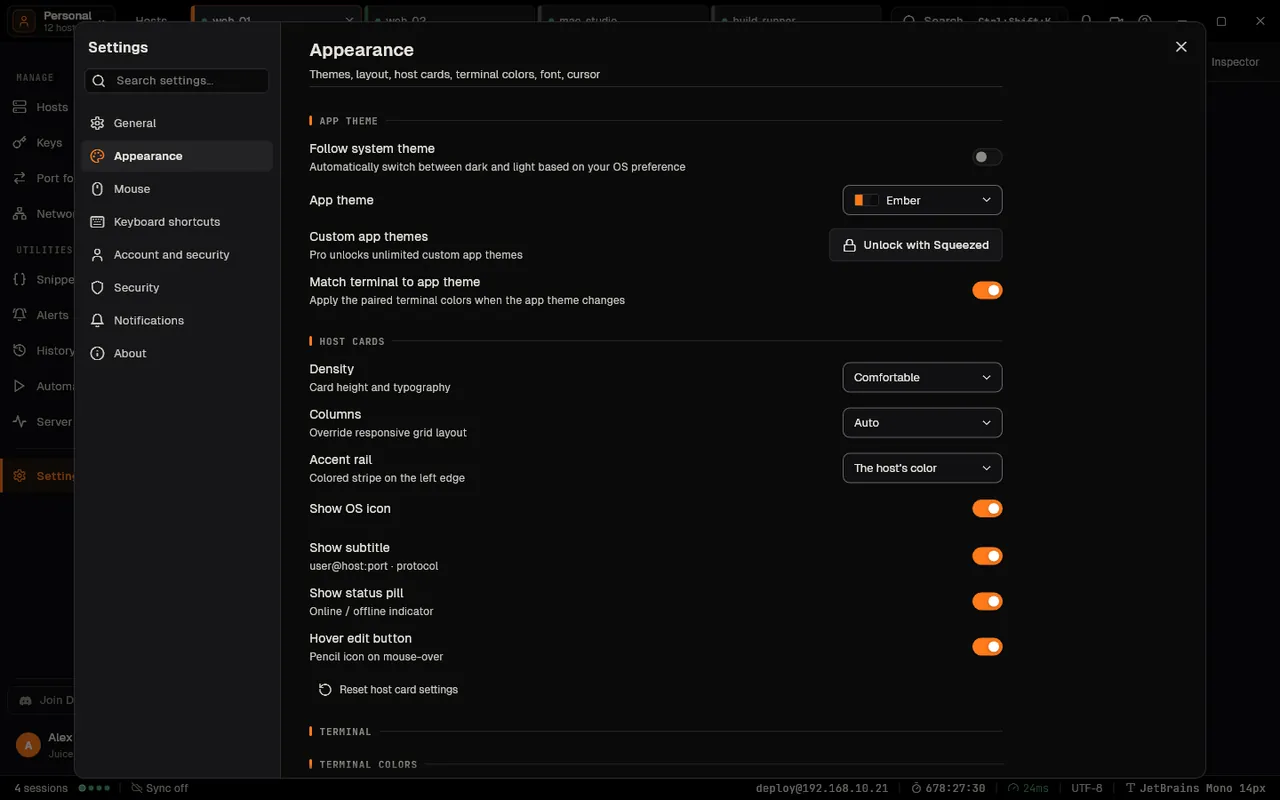
Under App theme, pick a theme from the App theme list. Turn on Follow system theme to switch between dark and light with your system.
-
Match terminal to app theme keeps the terminal in step. Turn it off to pick the terminal on its own, under Terminal, in Terminal colors.
-
Under Font, pick a Font family and Font size, and turn on Programming ligatures if your font has them.
Ctrl+=andCtrl+-change the size from the keyboard,Ctrl+0resets it. -
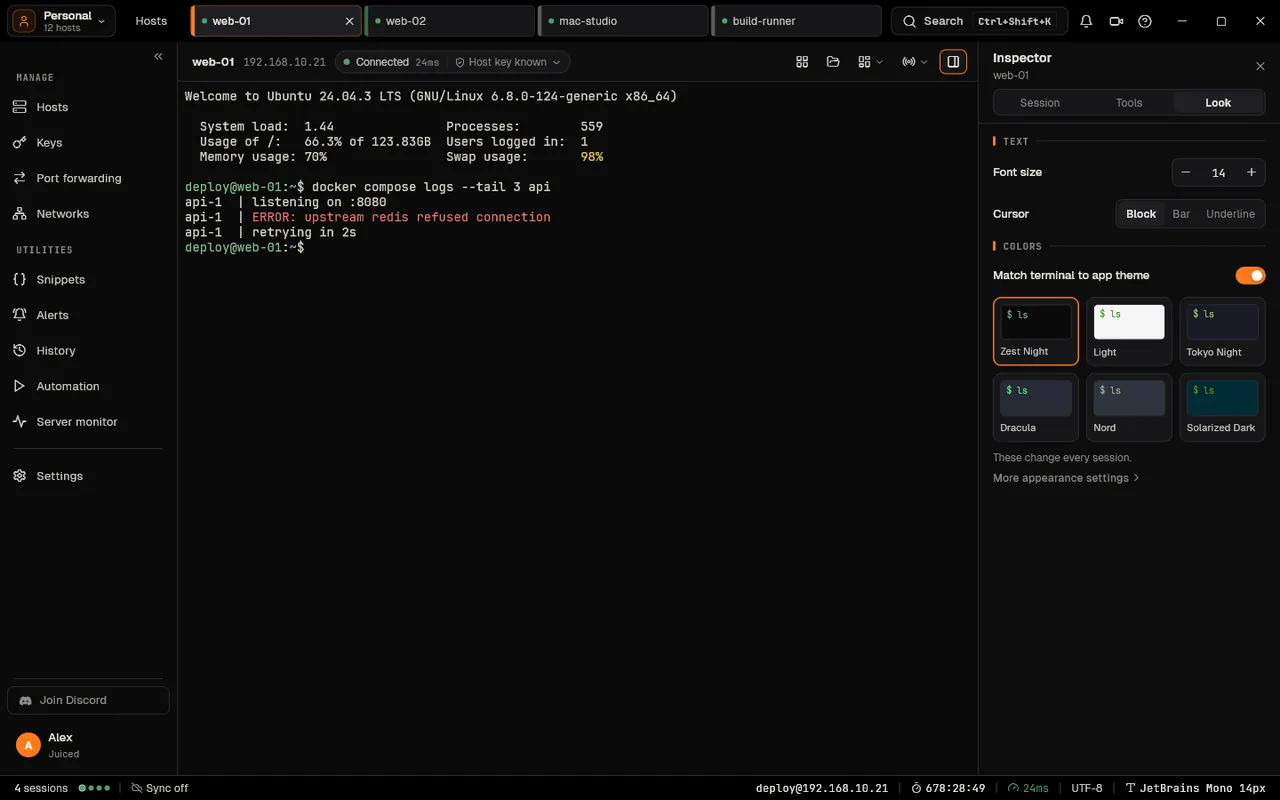
In a session, the Inspector in the session header has a Look tab with Font size, the cursor shape and six terminal themes, for a quick change.
On a phone or tablet
Section titled “On a phone or tablet”-
Open More, then Settings, then Appearance.
-
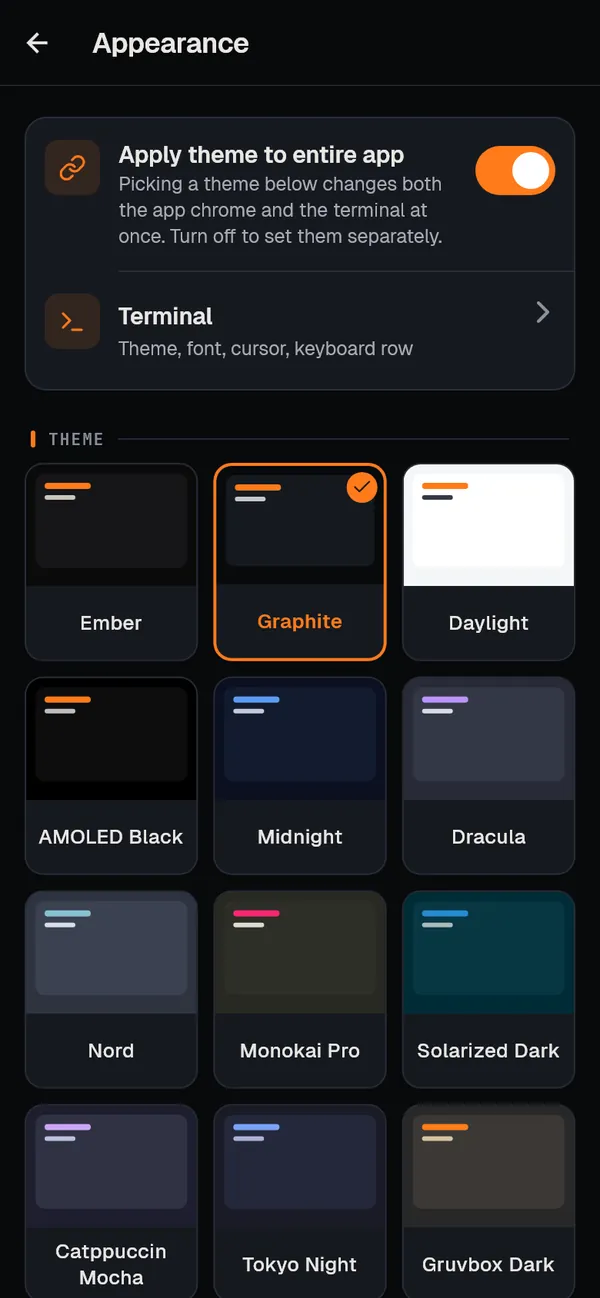
Tap a theme card. Apply theme to entire app at the top keeps the terminal in step; turn it off to set them apart.
-
Terminal holds the terminal’s own theme, font, cursor and keyboard row. In a session, pinch the terminal to change the font size.
Your own themes (Squeezed)
Section titled “Your own themes (Squeezed)”- Computer: in Appearance, Open theme designer beside Custom app themes or Custom terminal themes (on Free it reads Unlock with Squeezed). Give it a Theme name, set the colors, save.
- Phone: Terminal theme, then Create custom theme at the end of the list.
- Import scheme in the designer reads another terminal’s colors: Windows Terminal and VS Code JSON schemes, iTerm2
.itermcolorsand X resources files. - Brand colors on a phone change the app’s primary and accent colors, saved as a theme of its own.
How it works
Section titled “How it works”- Themes are data, not code. A theme is a set of colors; a custom one is stored as JSON in the
.zesthemeformat, which you can import and export. Built-in themes ship inside the app. See App themes and Custom theme import. - Pairing. Each built-in app theme has a paired terminal theme. While the terminal follows the app theme, picking either side sets the other.
- A host’s own terminal theme. In a host’s editor (the Terminal tab on a computer, Show advanced options on a phone), Override app defaults lets that host’s sessions use another terminal theme, so production can look different from everything else.
- Contrast. The designer marks colors that are hard to read on the background before you save.
- What is stored where. With sync on, the terminal theme, font, font size, cursor and ligatures go to your other devices, end to end encrypted. The app theme and the themes you make or import stay on the device where you chose or made them; export a
.zesthemeto take one elsewhere. See Cloud sync. - Fonts, sizes from 8 to 28 (14 by default), cursor shapes and ligatures are in Fonts; colors on a phone in Accent colors.
If something goes wrong
Section titled “If something goes wrong”- The terminal did not change with the app. Match terminal to app theme (computer) or Apply theme to entire app (phone) is off, or the host has Override app defaults on.
- Ligatures do not join. Programming ligatures is off by default, and the chosen font must draw them.
- An imported scheme is refused. It is over 1 MB or in none of the forms above. Export it again as JSON or
.itermcolors. - Open theme designer is locked. Custom themes need Squeezed; every built-in theme stays free.