Joining a team
In plain words
Section titled “In plain words”Someone on a team can invite you in two ways: by email, to the address of your ZestSSH account, or with a one-time invite code (as text, a link or a QR code). Either way, you accept or join first, and then someone on the team lets you in. Nothing of the team reaches your device before that.
With an email invitation, the two of you compare eight words on a call so each knows the other’s keys are real. With a code, the code checks the keys for you.
Joining a team does not need Squeezed or Juiced. While you are in a team that has bought seats, you get both for your personal space too.
Set it up
Section titled “Set it up”Before you start
Section titled “Before you start”- Sign in to ZestSSH with the account you want to join with. For an email invitation, it must use the address you were invited at.
- Set up sync on the device and let it sync once. Everything a team hands you is sealed to your team keys, which are made then. Sync itself is free, to your own storage or to ZestSSH Cloud.
Accept an email invitation
Section titled “Accept an email invitation”- Open the space switcher (on a computer, in the bar at the top of the window; on a phone, tap the name at the top of the Hosts tab) and choose Invitations. A dot on the switcher, and the notice You’re invited to join a team in the bell, show that one waits.
- Read who invited you, the role, how many vaults it opens, when it lapses, and what the team records about how members use it.
- Choose Accept, or Decline.
- ZestSSH shows your eight words: “Accepted. Next, they compare fingerprints with you and add you. Read them yours when they ask:”. When they call, read the words out. They add you once every word matches.
Join with a code or QR code
Section titled “Join with a code or QR code”-
Open the space switcher and choose Join a team.
-
Type or paste the code, or its link, under Invite code. On a phone you can choose Scan a QR code and point the camera at the code on their screen. Choose Continue.
-
Read what the code says: the team’s name, who invited you, You join as, You get, Your account, and a green line such as “Checked with the code: this is the real Example Ops.”
-
Choose Join with the team’s name (for example Join Example Ops), or Not now.
-
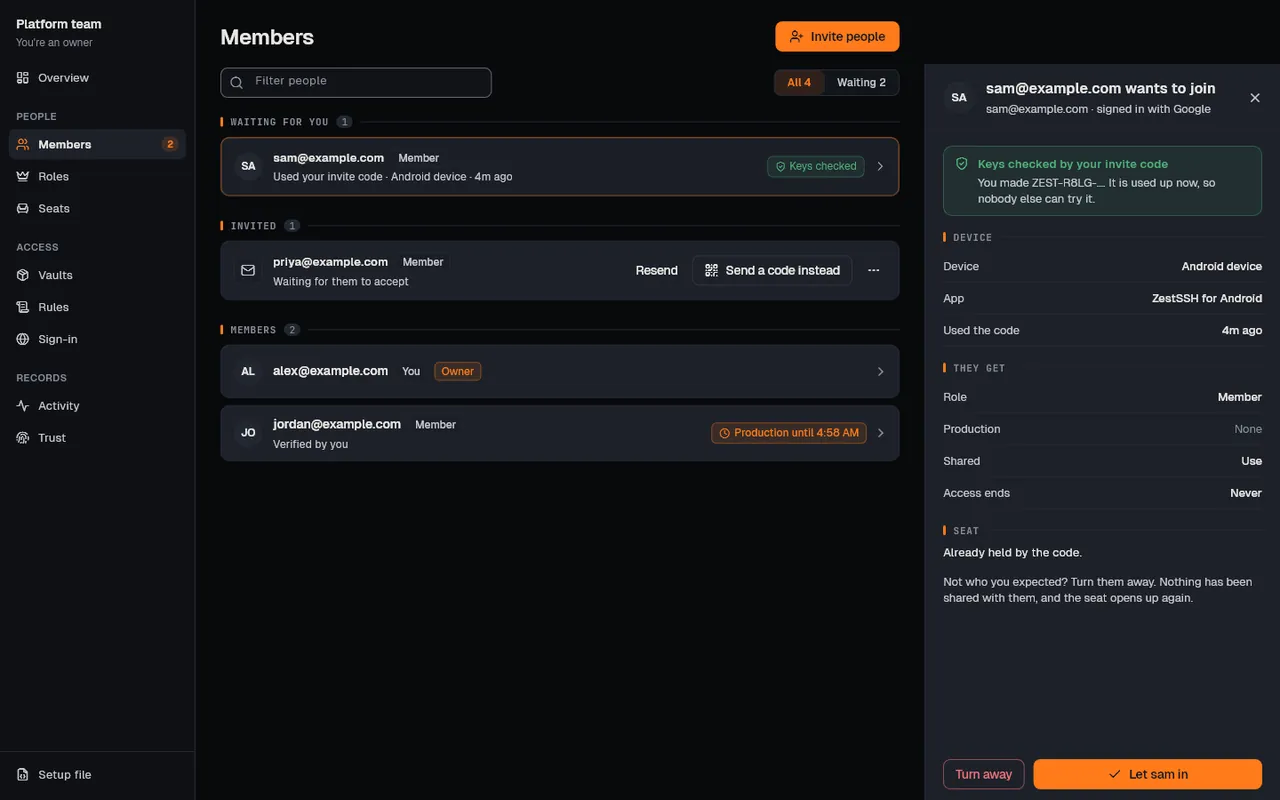
ZestSSH shows Waiting to be let in until the person who made the code lets you in. The team then appears by itself.
Once you are in
Section titled “Once you are in”-
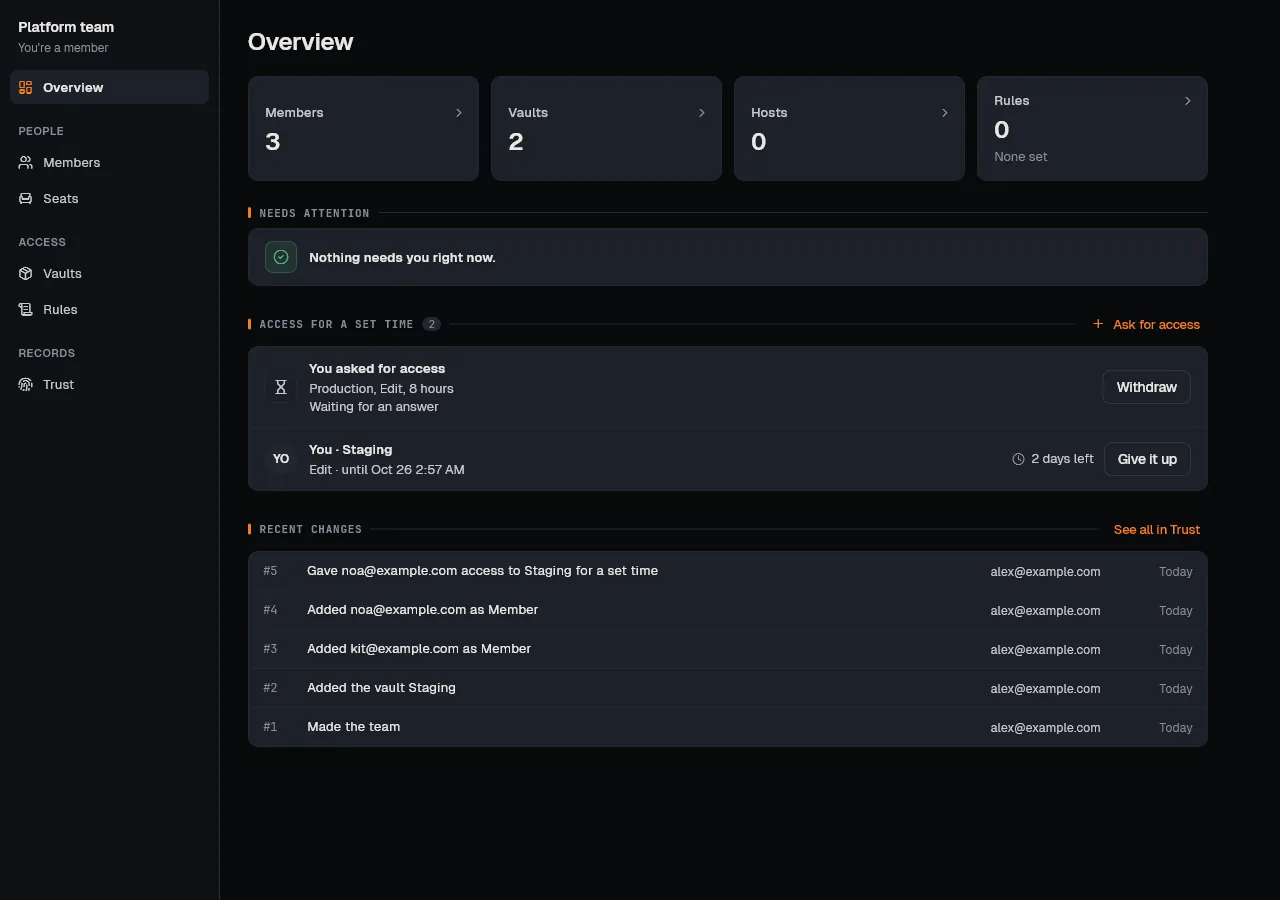
Switch to the team in the space switcher. Its Team pages open on Overview: the team at a glance, what Needs attention, and Access for a set time, where you can Ask for access to a vault you do not have.
-
Compare words with the person who added you, and with anyone else you work with: open Members, open the person and choose Compare codes (on a phone, Compare fingerprints in the row’s menu). If every word matches, choose They match. On a phone, Scan their code checks their screen with the camera, and Show my code shows yours.
How it works
Section titled “How it works”- Your team keys. Your account has two key pairs made on your device: X25519, which team and vault keys are sealed to, and Ed25519, which signs your record entries and items. Their private halves move between your devices only inside your end to end encrypted personal sync and backups. See Your team keys.
- The words are your fingerprint. SHA-256 over both your public keys, shown as eight BIP-39 English words (88 bits) or 60 digits. Every device of the same account shows the same words. Comparing them over a call is the check against a server that shows someone a key of its own. See Why you compare fingerprints.
- What a code checks. The code is 100 random bits. ZestSSH Cloud is given only a lookup id derived from it with HKDF-SHA256. Your device checks the maker’s MAC over the team, the maker’s keys and the offer before it shows you anything; the maker’s device checks yours over your keys before it lets you in. The link carries the code after
#, which a browser never sends to a website. See What the code proves. - Nothing before you are added. An invitation shows no team name and no role names (they are encrypted for members). Once you are added, you get copies of the team’s and vaults’ keys sealed to your account key, each signed by whoever added you.
- After you join, your device pins everyone’s keys the first time it sees them, and warns if their keys later change without their old keys vouching for the new ones.
- The full design is in the whitepaper, section 13, Teams.
If something goes wrong
Section titled “If something goes wrong”- Your team keys are on another device. They arrive once this device syncs with the same storage and sync password. Sync now, then accept. No longer have that device? Choose I don’t have that device.
- “That is not an invite code. A code looks like ZEST-XXXX-XXXX-XXXX-XXXX-XXXX.” Check what you typed or pasted.
- “This code does not work. It may have been used already, cancelled, or run out. Ask for a new one.” A code works once, for a set time. Ask for a new one.
- “This code does not check out.” What ZestSSH Cloud sent is not what the code was made for, so nothing was joined. Ask for a new code, and tell whoever made it.
- “This team asks for two-step sign-in first. Fix that, then accept.” Turn on two-step sign-in for your account, sign in again with it, then accept. See Team rules.
- More: Join a team with a code.