Session sharing
In plain words
Section titled “In plain words”You can share a session with people who can open the same team vault as its host. There are two ways:
- Shared tmux (recommended): each person connects to the host with their own sign-in and attaches to the same tmux session. Nothing of the terminal goes through ZestSSH.
- Live view: they watch your terminal through an end-to-end encrypted stream and never get the host’s credentials. Nobody types but you, until you hand someone the keyboard.
For a sensitive vault, owners can turn on Watched sessions: then a session to its hosts starts only once someone else who manages the vault watches it.
Sharing works for hosts in a team’s vault, not for hosts in your personal space.
Set it up
Section titled “Set it up”Share a session
Section titled “Share a session”-
Connect to a host in a vault.
-
Open the session’s menu (on a computer, from the status chip in the session’s header; on a phone, from the terminal’s menu) and choose Share this session.
-
Choose Shared tmux (marked Recommended) or Live view.
-
Under Who, tick the people. Only people with access to the vault are listed. Someone whose keys changed shows Key changed, verify first: Verify opens the team’s members to compare their keys.
-
For a live view, leave Let them request the keyboard on or off, and tick Can end the session under anyone who may close it.
-
Choose Invite to tmux session or Start live view. They get the notice You are invited to a shared session.
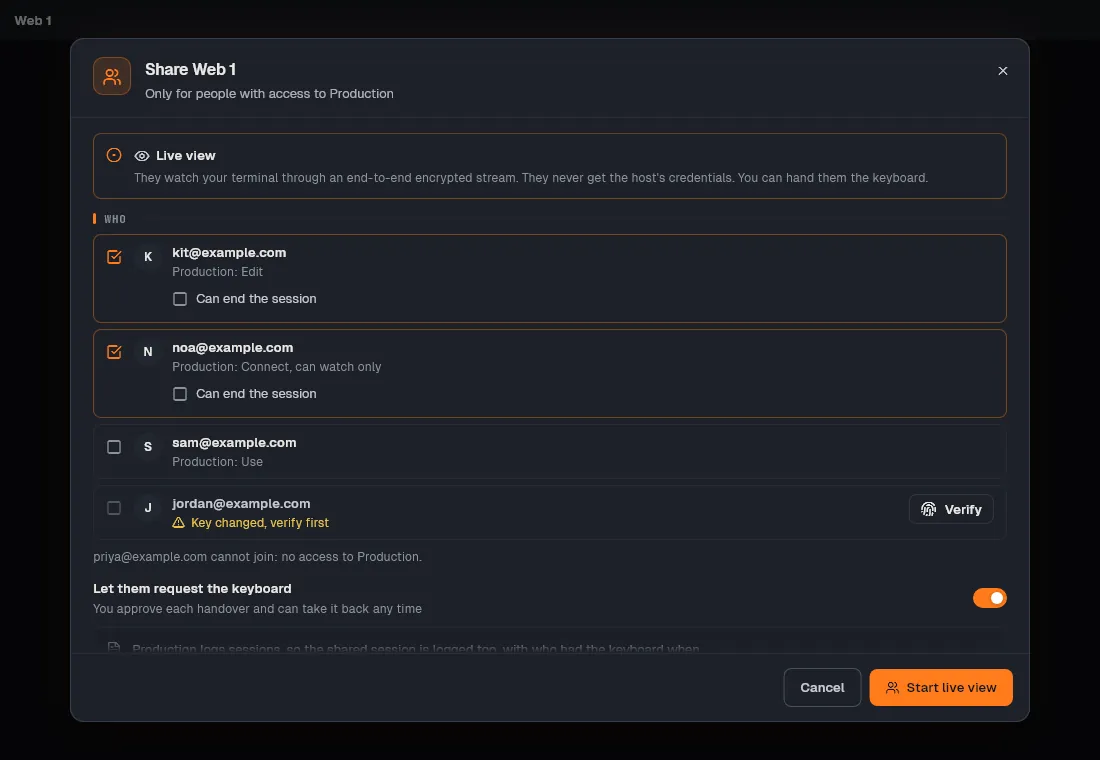
Hand over the keyboard, and stop
Section titled “Hand over the keyboard, and stop”-
The chip in the session’s header (on a phone, the strip under the toolbar) shows Live view or Shared tmux with how many people are there. It opens the list of people.
-
When someone asks, choose Give keyboard or Not now. Take back takes it back at any time, and you can always type yourself.
-
Remove from this share removes one person. Invite more people adds people. Stop sharing ends it for everyone; your own session goes on.
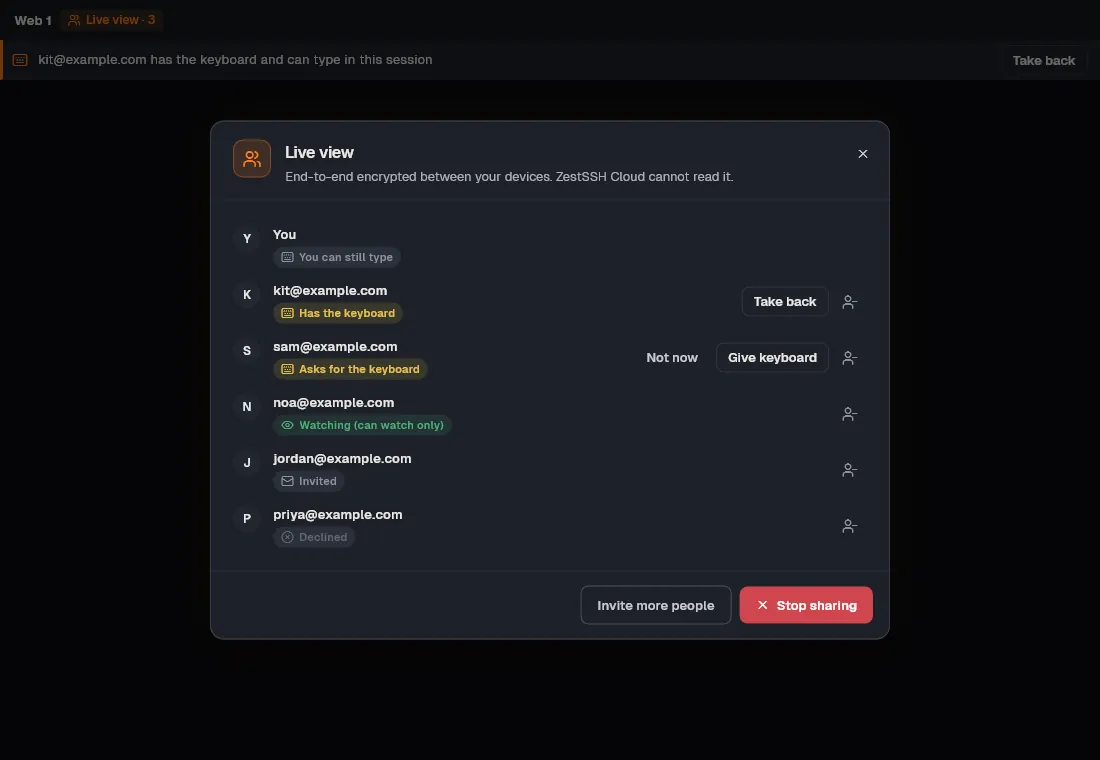
Join someone’s session
Section titled “Join someone’s session”-
Open the invitation from the notice, or open Shared with you: on a computer from the people icon in the top bar, on a phone from More.
-
Choose Watch for a live view or Join for a shared tmux session. Decline tells the person sharing.
-
In a live view, Ask for the keyboard when you may, End session when you can, and Leave when you are done.
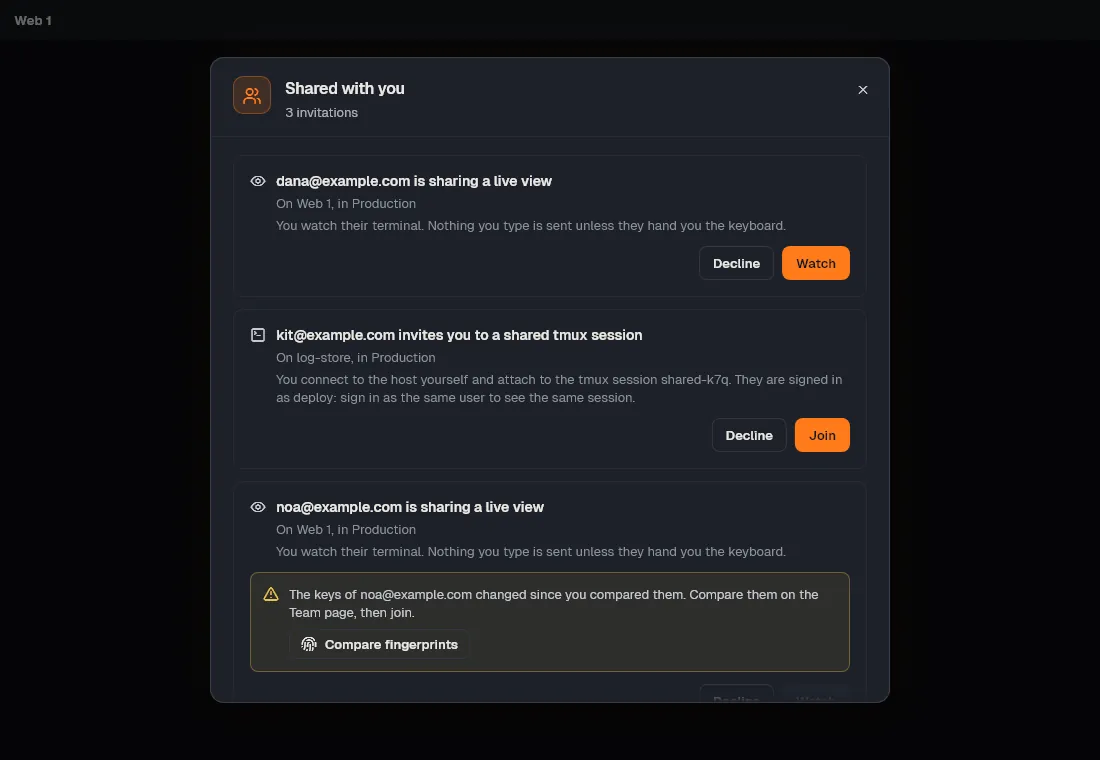
Watched sessions (owners)
Section titled “Watched sessions (owners)”- Open Team, then Vaults, and open the vault. Turn on Watched sessions and choose Watch sessions.
- Members connecting to its hosts then choose Ask someone to watch, tick someone who manages the vault, and choose Ask to watch. The tab shows Waiting for someone to watch until one of them joins.
How it works
Section titled “How it works”- A live view is end to end encrypted. Each invitation is signed by the sharer’s Ed25519 account key and sealed to the invited person’s key, and each side checks the other’s signature against the keys it pinned. Each viewer gets keys from one-time X25519 and ML-KEM-768 secrets combined with HKDF-SHA256, bound to the signed invitation. Frames use ChaCha20-Poly1305 with a key and counter per direction; a gap, repeat or reordering ends the channel. ZestSSH Cloud relays frames it cannot read and keeps nothing once a share ends.
- Shared tmux sends no terminal through ZestSSH. Each person makes their own SSH connection with their own access and attaches by the tmux session’s name; ZestSSH Cloud only says who is there. They must sign in as the same user as you to see the same session.
- Typing is yours. In a live view, what a viewer types is dropped unless they hold the keyboard, and only one person holds it at a time. When ZestSSH locks on your device, the keyboard comes back to you.
- Limits. At most 8 people in one share, 3 shares at once per account, and 12 hours per share. One device per person.
- Watched sessions are a rule the app keeps. Nothing typed reaches the host while nobody watches, and the session closes after two minutes unwatched. A watched vault allows the terminal only. When ZestSSH Cloud cannot be reached, an owner (and others, where owners allowed it) can connect with a reason, written into the team’s record later, so the service being down never stops a team from reaching its machines.
- More in Session sharing and moderation, and in the whitepaper, section 13, Teams.
If something goes wrong
Section titled “If something goes wrong”- The host is in your personal space. Sessions can be shared only in a team. Move the host into a team’s vault with Move to vault.
- “This host has not reached ZestSSH Cloud yet, so the others do not have it. Sync first.” Let the team sync, then share again.
- The tab shows tmux and a live view is refused. Share it as a shared tmux session, or leave tmux to share a live view.
- “You are sharing three sessions already. Stop one to share another.” Choose Stop sharing on one of them.
- A person cannot be picked: Key changed, verify first. Compare fingerprints with them on the Members page, then share again.
- “Nobody joined to watch, so the session was not started.” In a watched vault, connect again when someone who manages the vault is around.