Sync and backups
In plain words
Section titled “In plain words”Sync keeps the hosts, keys, snippets and settings of your personal space the same on all your devices. Everything is encrypted on your device, with a master password only you know, before it leaves. Sync itself is free on every plan with storage you already have: WebDAV (such as Nextcloud), S3-compatible storage or Google Drive. Juiced adds ZestSSH Cloud, storage we host for you, on up to 7 devices.
A backup is a single encrypted .zest file you make and restore yourself, with no account. Use both: sync for every day, backups for the day something goes wrong.
Set it up
Section titled “Set it up”-
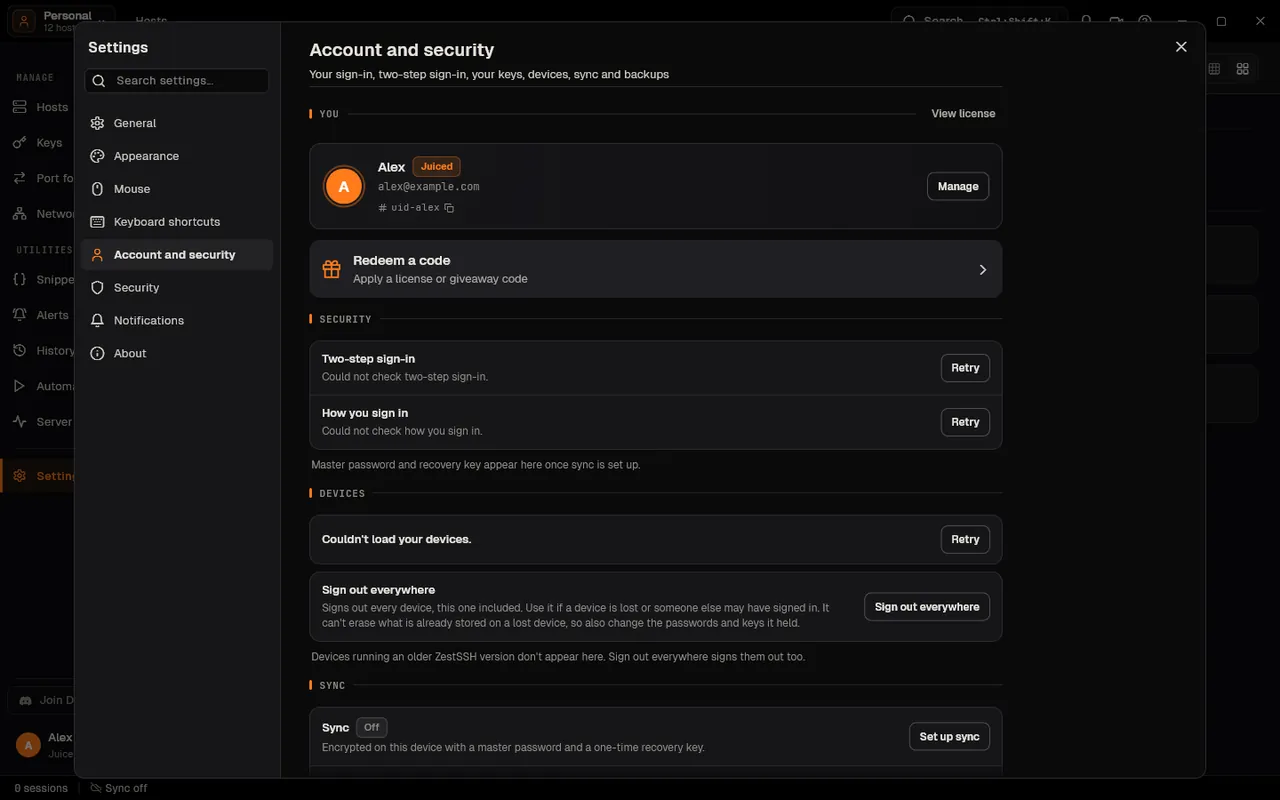
Open the account page: on a computer, Settings, then Account and security; on a phone, More, then Account.
-
In the Sync section, on the Storage row, choose Choose (or Change) and pick ZestSSH Cloud, WebDAV, S3-compatible or Google Drive. For your own storage, fill in its fields (for WebDAV: Server URL, Username, Password, Folder (optional)), choose Test connection, then Save.
-
On the Sync row, choose Set up sync. Choose a master password of at least 12 characters and type it twice.
-
Save the recovery key it shows with Copy, Download .txt or Print, tick I have saved my recovery key, and choose Finish.
-
On each other device, open the same page, pick the same storage and choose Set up sync, then type the master password. On ZestSSH Cloud you can choose Approve from another device instead and compare three words.
-
Sync now syncs at once, Pause stops it For 1 hour, For 1 day or Until I resume it, and Sync mode sets how often it runs (Instant, an interval, or Manual).
Backups
Section titled “Backups”-
On the same page, under Data, choose Export… on the Export row. On a phone, you can also open Settings, Data, Export data, then Full backup (.zest).
-
Type a Backup password of at least 12 characters and again in Confirm password, then choose Export…. ZestSSH says Backup exported and where the file is.
-
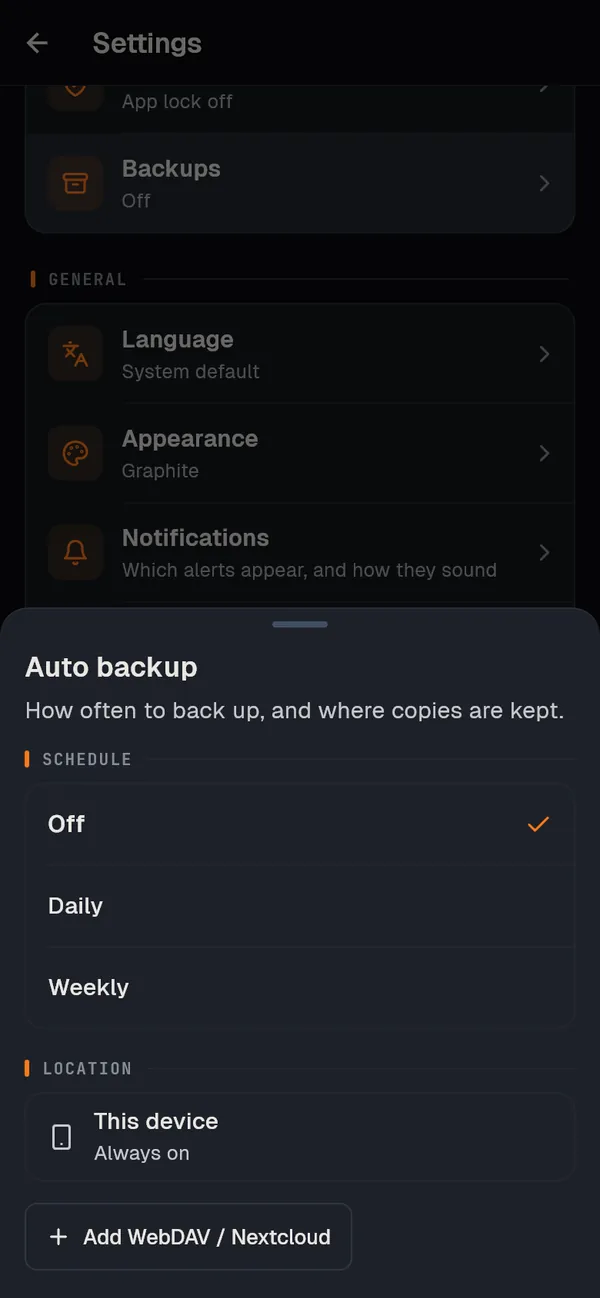
For backups by themselves, choose Change on the Automatic backups row and pick Daily or Weekly, and set an Auto-backup password. On a phone, Settings, then Backups, can also copy them to a WebDAV or Nextcloud server.
-
To restore, choose Import… on the Import row, pick the
.zestfile, type its password, read Restore this backup? and choose Restore.
How it works
Section titled “How it works”- Encrypted before it leaves. Sync makes a random 256-bit data key and encrypts your data (JSON, zlib-compressed) with AES-256-GCM under it, with a fresh 12-byte nonce for every upload. The data key is wrapped with a key derived from your master password by Argon2id (128 MiB, 3 passes, 4 lanes, a random 32-byte salt), and a second copy with a key from your recovery key. Your master password, recovery key and data key never leave the device. See Cloud sync and the whitepaper, section 6, Cloud sync architecture.
- What the storage sees. The encrypted package, the salts and Argon2id settings, the wrapped keys, two check values (so a wrong password can be told apart without learning it), a version number, a time and a size. It cannot read your hosts, addresses, users, keys, passwords or snippets. ZestSSH refuses Argon2id settings weaker than 64 MiB, 3 passes and 4 lanes from a storage that tries to lower them.
- Merging. Each device compares three copies of every item (its own, the storage’s, and the one it last synced): a change made on one side is kept, an item changed on both goes to the later change, and a delete wins over an older change. Two devices writing at once cannot overwrite each other. See Pause and intervals.
- Backups. A
.zestfile is the same data, zlib-compressed and encrypted with AES-256-GCM under a key from your backup password through Argon2id with the same settings, which are written into the file. Automatic backups keep the 3 newest on the device; on a computer they go to the app’s own folder, not Documents, which is often copied to a cloud. See Local backups, Encrypted backups and the whitepaper, section 7, Encrypted backups (.zest). - Devices. The Devices section lists every device signed in to your account, with Sign out and Sign out everywhere. ZestSSH keeps only each device’s platform and when it signed in. See Signed-in devices.
If something goes wrong
Section titled “If something goes wrong”- “ZestSSH Cloud syncs up to 7 devices for one person, and this one would be more.” Choose Sign out a device and sign out one you no longer use. Storage of your own has no limit.
- Lost the master password. On a device joining sync, under Lost the password, choose Use recovery key. Without the recovery key nobody, ZestSSH included, can open the synced copy; on ZestSSH Cloud, Reset cloud sync lets you start again, and your devices keep their own data. See Recovery key and recovery kit.
- “This device’s clock looks wrong.” Set the date and time right, then Sync now.
- An
http://address is refused. Usehttps://, or an address on your own network. - More help: Sync not working.
Related guides
Section titled “Related guides”- Keys
- Import from other apps
- Phones and tablets
- Joining a team, which includes ZestSSH Cloud sync once the team has a seat