Phones and tablets
In plain words
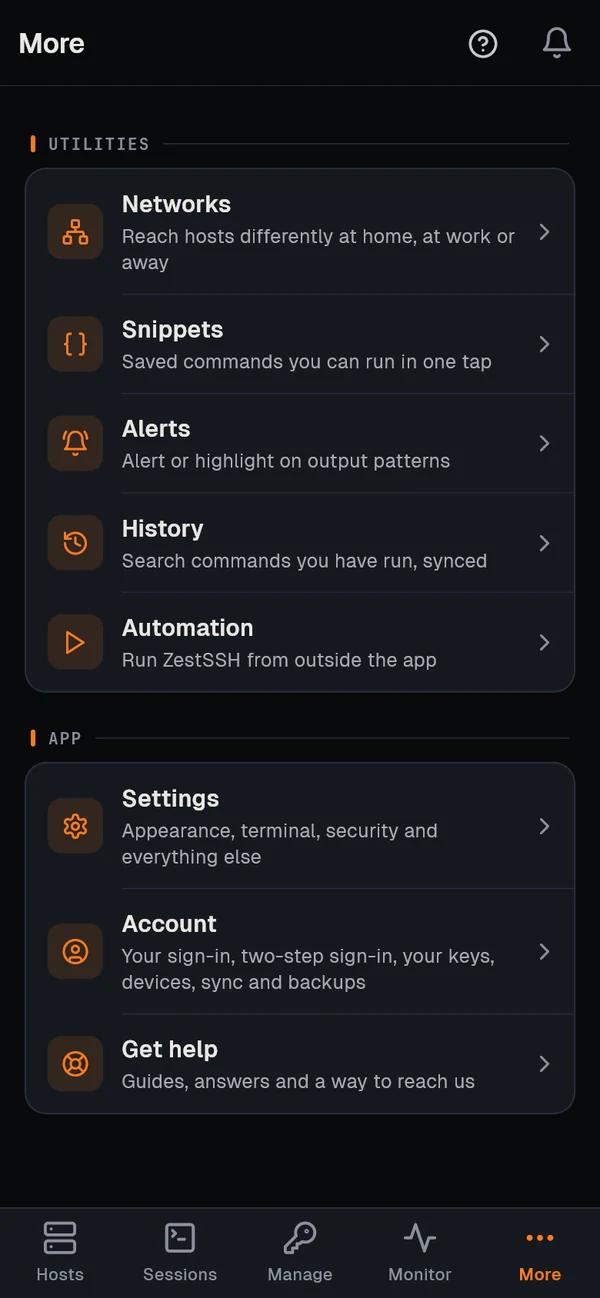
Section titled “In plain words”On a phone, ZestSSH has five tabs along the bottom: Hosts (your servers), Sessions (what is open now), Manage (your keys and port forwarding), Monitor (how your servers are doing) and More (snippets, networks, alerts, history, automation, settings and your account). A tablet has Hosts, Snippets, Sessions, Monitor and More, with keys and port forwarding under More.
The terminal has a row of extra keys above the keyboard for the keys a phone lacks, such as Esc, Tab, Ctrl and the arrows. Gestures do the rest. Phones close apps in the background, so ZestSSH reconnects by itself when you come back.
Set it up
Section titled “Set it up”Getting around
Section titled “Getting around”-
Tap a host on the Hosts tab to connect. The + button adds a host or a group, and the bar at the top (Search or user@host:port) finds a host or connects to a new address. On a phone, the info button at the end of a host’s row opens the host’s page: Connect and Files at the top, then its health, recent sessions, port forwards, how it connects, its tags and its note, with Edit in the bar.
-
On a phone, Manage has Keys and Port forwarding, picked at the top. Open More for everything else: Snippets, Networks, Alerts, History and Automation, then Settings and Account. On a tablet, Keys and Port forwarding are in More too.
-
The ? at the top opens Help, with these guides. Tap a picture in a guide to see it full size.
-
The bell at the top starts with Needs you: what waits for you right now, such as a host that is down or a device waiting for approval, each with the one action that resolves it. See Notifications.
Typing in the terminal
Section titled “Typing in the terminal”-
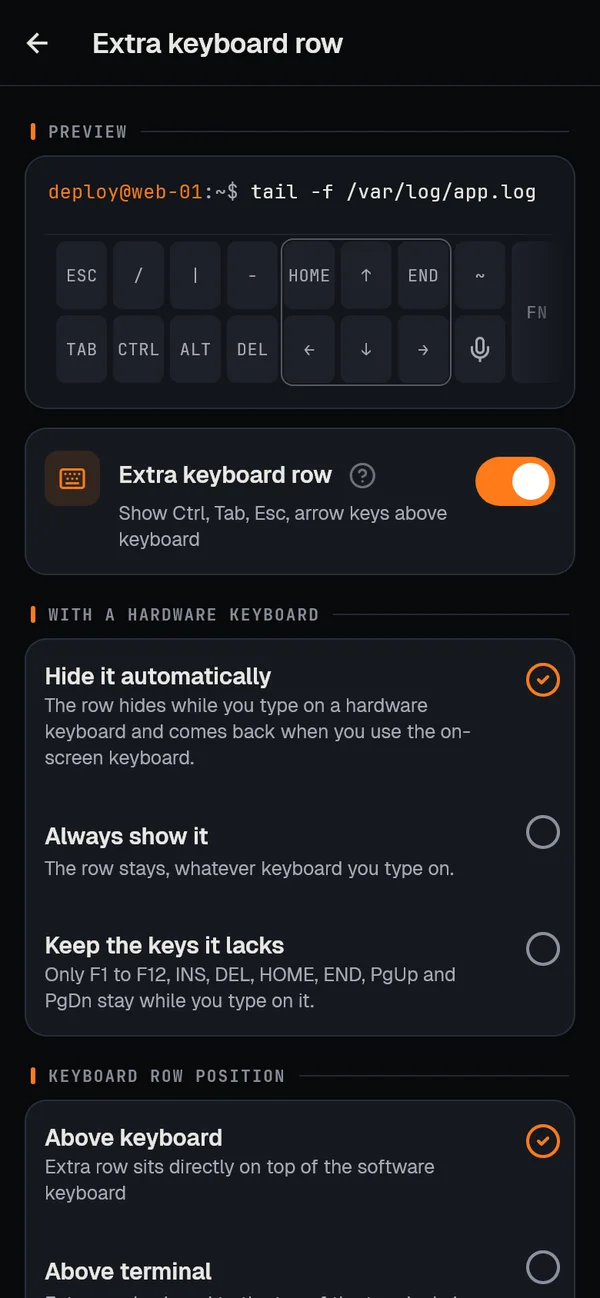
The extra key row sits above the keyboard: ESC, TAB, CTRL, ALT, the arrows, HOME, END, DEL and more; FN shows F1 to F12, with Page Up and Down and Insert. CTRL and ALT stay down for the next key you press. With a keyboard case, a tablet keeps just the keys such a keyboard lacks.
-
To change it, open More, Settings, Appearance, Terminal, then Extra keyboard row. Choose Keyboard row position (Above keyboard or Above terminal), a Key size (Small, Medium or Large) and a Key style (Grouped or Flat), turn on Scrollable key row if you like, hide and order keys with Customize keys, and pick what happens with a hardware keyboard (Hide it automatically, Always show it or Keep the keys it lacks).
-
Gestures in a session: a two-finger tap sends
Ctrl+C, a three-finger tap pastes, a two-finger swipe left or right switches sessions, and a pinch changes the font size. On a phone, a sideways swipe on the terminal’s top bar also moves to the previous or next session, in the order the Sessions tab lists them, and shows its name for a moment. -
The microphone key types what you say (Squeezed). A Bluetooth or USB keyboard works as on a computer.
-
To copy output, press and hold the terminal and choose Copy from screen. It opens at the newest output and shows the last 100 lines; pick Last 250, 500, 1,000, All or Custom (any number) at the top, and the choice is kept. Copy copies the lines shown, or just what you selected. Drag the scrollbar on the right, or use the round buttons, to jump to the top or the bottom.
Two sessions side by side (tablets and open foldables)
Section titled “Two sessions side by side (tablets and open foldables)”In a session, open the toolbar’s menu (the three dots) and choose Split terminal. Drag the divider to share the room; Close split goes back to one.
How it works
Section titled “How it works”- Background on iOS. iOS suspends apps about 30 seconds after they leave the screen, and their network connections end with them; no app can keep SSH open longer. With Auto reconnect on (the default, in a session’s Terminal settings), ZestSSH connects again when you return: up to 10 tries, waiting 2, 4, 8 and 16 seconds, then 30 seconds. Use tmux or screen on the server to keep your work running. See iOS backgrounding.
- Background on Android. While a session is open, ZestSSH runs a foreground service with a quiet SSH sessions notification, so Android lets the connection live. Battery savers can still end it: set ZestSSH’s battery use to unrestricted. See Android background connections.
- Keepalives are sent every 30 seconds by default, so routers and servers do not close an idle session.
- The keyboard. On Android, Incognito keyboard (on by default) asks the keyboard not to learn from what you type in the terminal, where passwords at a prompt are typed. See Keyboard.
- Voice input uses the device’s own speech recognizer; ZestSSH asks for recognition on the device, which iOS enforces. ZestSSH never receives the audio.
- Tablets count as a tablet when the screen’s shorter side is at least 600 dp; foldables when open. See Split terminal.
- The Free plan opens 2 sessions at once on a phone or tablet; Squeezed has no limit.
If something goes wrong
Section titled “If something goes wrong”- Sessions drop when I switch apps (iPhone, iPad). That is iOS. Keep Auto reconnect on, and run
tmuxorscreenon the server so nothing is lost. Tap Why? on the notice for the in-app explanation. - Sessions drop with the screen off (Android). Allow notifications for ZestSSH, keep the SSH sessions channel on, and set battery use to unrestricted. Never use Force stop.
- The key row is missing. Turn on Extra keyboard row; with a hardware keyboard a phone hides it by itself unless you choose Always show it or Keep the keys it lacks.
- Split terminal is not in the menu. The screen is too small: it shows on tablets and open foldables only.