SFTP
In plain words
Section titled “In plain words”SFTP shows a server’s files, like a file manager. You can open folders, upload and download, rename, delete, change permissions, and edit a text file without leaving the app. It uses the same encrypted SSH connection as your terminal, so there is nothing else to set up on the server.
On a computer it is a dock in the session’s tab with two panes side by side, so you drag files between your computer and the server. On a phone it is a single list made for touch. SFTP is free on every plan.
Set it up
Section titled “Set it up”On a computer
Section titled “On a computer”-
Connect to a host, then press SFTP in the session header (or
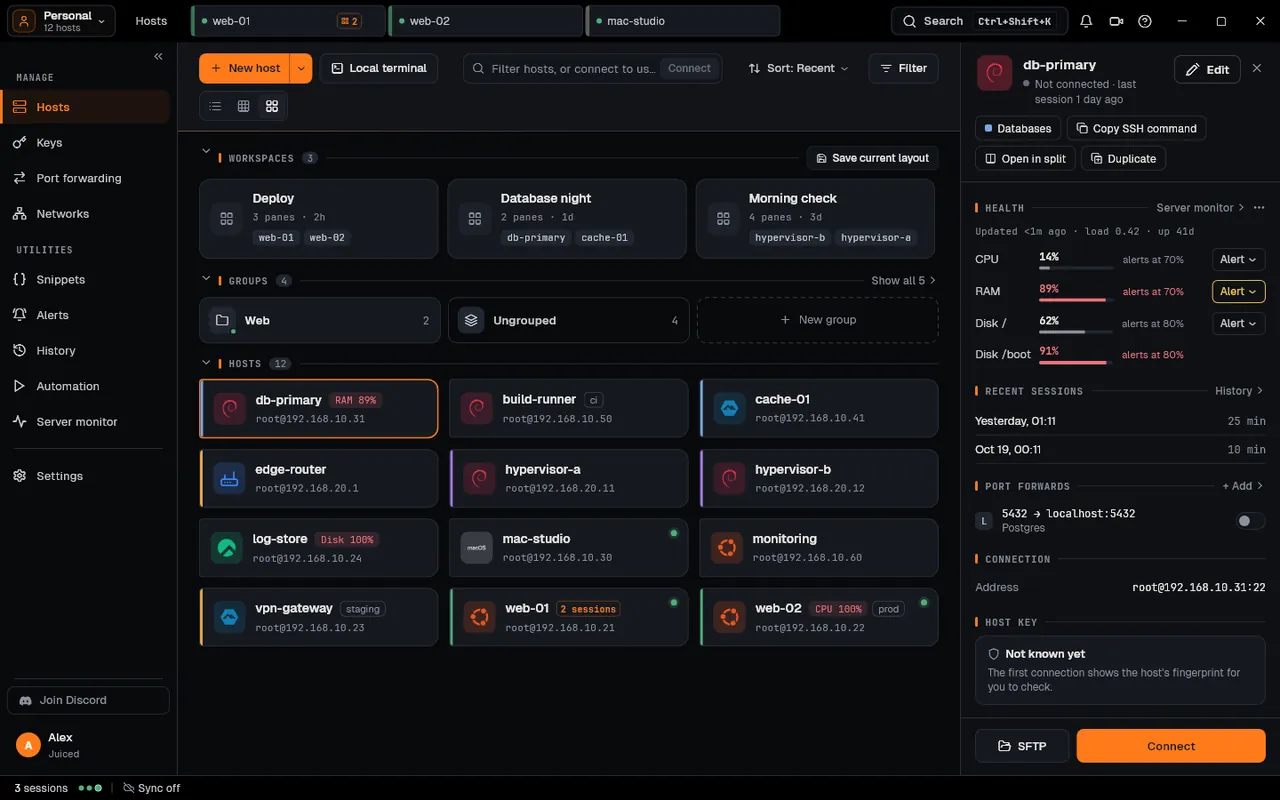
Ctrl+Shift+S). From the Hosts page, select a host and press SFTP in its panel: ZestSSH connects first if it has to.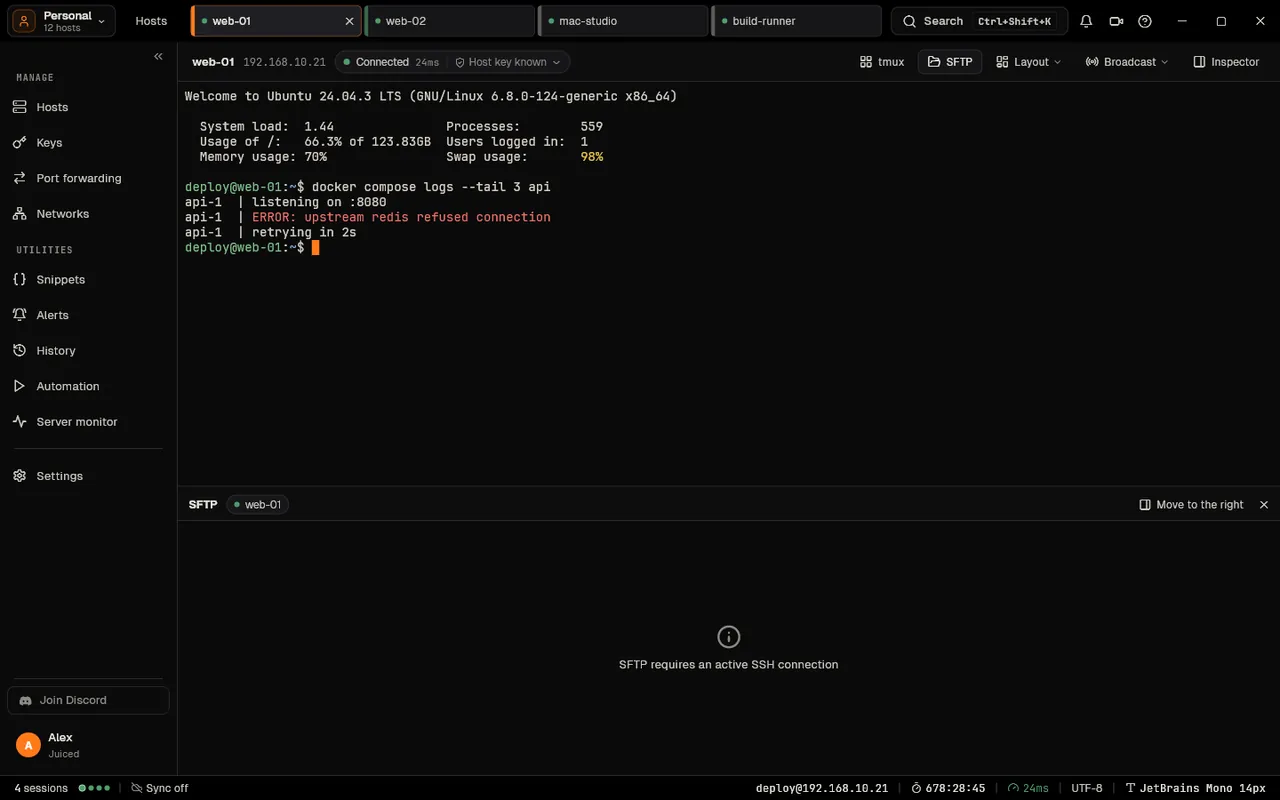
-
The dock opens under the terminal. Move to the right puts it beside the terminal instead (Move to the bottom puts it back). Press SFTP again to close it.
-
Point one pane at a folder on your computer and the other at a folder on the server. Each pane can be any source: your computer or any saved host.
-
Drag files or folders from one pane to the other, or select them and press Upload or Download. For a folder, a dialog first shows what will be sent, so you can untick heavy parts such as
node_modules. -
Watch the Activity panel at the foot of the dock: progress, speed and time left, Retry for a failed transfer, and Verified once the two copies match.
-
Right-click a file for Open in editor, Follow (live tail), Rename…, Permissions…, Copy path and Delete.
On a phone or tablet
Section titled “On a phone or tablet”-
In a session, tap SFTP in the terminal’s toolbar. Or long-press a host on the Hosts tab and tap Files.
-
Tap folders to move around; the path at the top takes you back up.
-
Tap a file for Edit in editor, Download, Download & share, Copy path, Rename, Properties and Delete.
-
To send files to the server, tap the upload button at the bottom right and pick them. Long-press a row (or Select files) to pick several, then Download selected or Delete selected.
Send a folder again, changes only (computer)
Section titled “Send a folder again, changes only (computer)”Right-click empty space in your computer’s pane and choose Sync folder to server. A preview lists what is new, changed and unchanged; Preview only closes it without sending anything.
How it works
Section titled “How it works”- The protocol. SFTP is the SSH File Transfer Protocol: a subsystem channel inside your SSH connection, so files travel encrypted with the session’s keys and the server needs only its usual
sftp-server. ZestSSH’s servers never see your files. See SFTP browser. - Resuming. A download is written to
name.zestpartfirst and put in place only when every byte is there; downloading the same file to the same folder again carries on from the partial file if the server copy has not changed. An upload that stopped starts again from the beginning, and never damages the file on the server. On a computer, files between 4 MB and 256 MB are checked afterwards by SHA-256 on both sides (sha256sumorshasumon the server). See Resume transfers. - Parallel transfers. On a computer, up to three files move at once, on a second SFTP channel over the same SSH connection, so browsing stays quick during a big transfer. See Parallel transfers and Drag and drop.
- Folder sync compares size and modification time (or content, with Verify by content) and uploads only what changed; it never deletes on the server unless you tick Also delete the files that only exist on the server. See Folder sync.
- Safe deletes. With Delete hold on (Settings, under SFTP), a delete on the server waits a few seconds with Undo. A delete on your computer goes to the Recycle Bin or Trash.
- What is remembered. Each pane remembers its folder per host on this device; Forget last folder on the host clears it.
- In a team, a vault can turn SFTP off for its hosts: opening it then says “SFTP isn’t allowed in this host’s vault.”
If something goes wrong
Section titled “If something goes wrong”- “SFTP requires an active SSH connection”. The dock needs a live SSH session on that host: connect first, or reconnect after a drop.
- The server has no SFTP. Some minimal servers and network devices do not run
sftp-server. Turn on theSubsystem sftpline in the server’ssshd_config. - “A transfer is already in progress.” A phone runs one transfer at a time; wait or cancel it.
- A transfer failed. Its row in Activity says why, with Copy details (names and secrets taken out) and Retry. A permission error means the server account cannot write there: check with
ls -ldon the server.