Snippets and workflows
In plain words
Section titled “In plain words”A snippet is a command you save once and run again from any session: df -h, a docker logs line, a deploy script. It can hold variables, so ZestSSH asks for the parts that change each time. Snippets are free on every plan.
A workflow is a list of steps that run one after another: a command, a snippet, a wait, a notice to yourself. Use one for a deploy or a routine check you run often. Workflows need Squeezed.
Set it up
Section titled “Set it up”A snippet, on a computer
Section titled “A snippet, on a computer”-
Open Snippets in the side rail, under Utilities, and click New snippet.
-
Fill in Label and Command. Put a variable where a value changes, for example
docker logs ${CONTAINER} --tail 50. Pick a Category and, if you like, a Default host. -
Under Run options, turn on Confirm before running for a command you want to be asked about every time, then click Save.
-
Click a snippet to see it on the right, then press Run, or Run on… to pick a host. The arrow beside a row’s Run has Run in the session you’re in. Inside a session, the Inspector lists your snippets too, and the command palette (Ctrl+Shift+K) finds them: type
#first to search snippets only.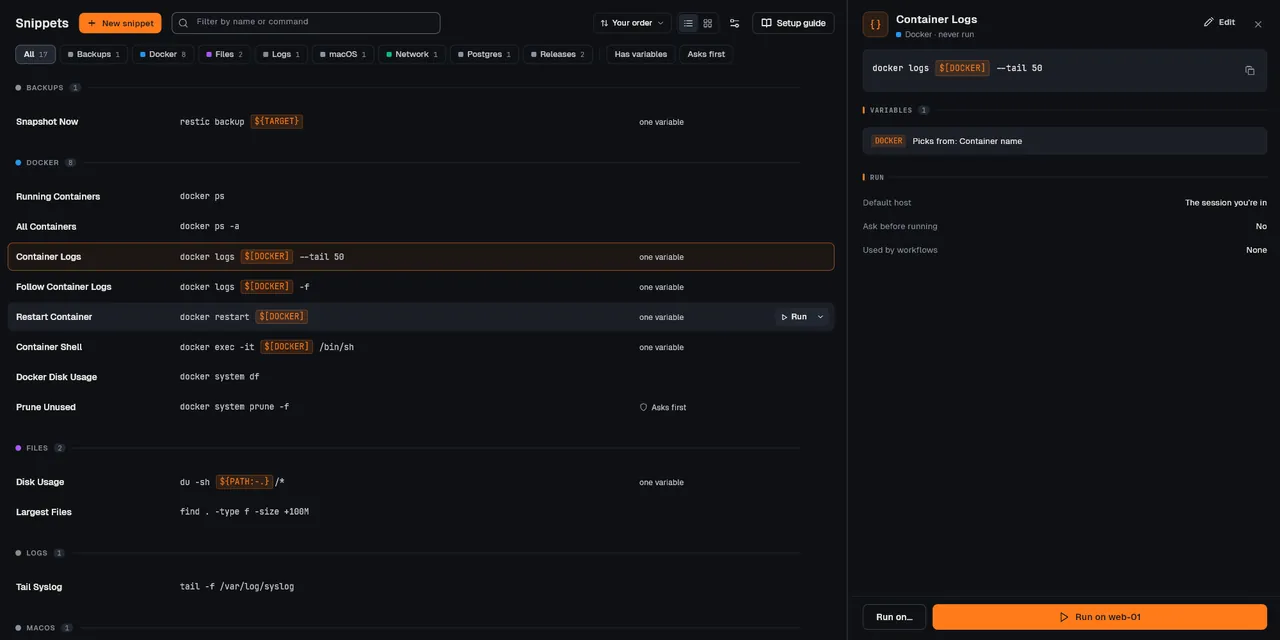
-
To run it on several hosts at once, open the snippet’s menu (its three dots, or a right-click) and choose Run on hosts…. Tick the hosts and press the button that names how many.
A snippet, on a phone or tablet
Section titled “A snippet, on a phone or tablet”-
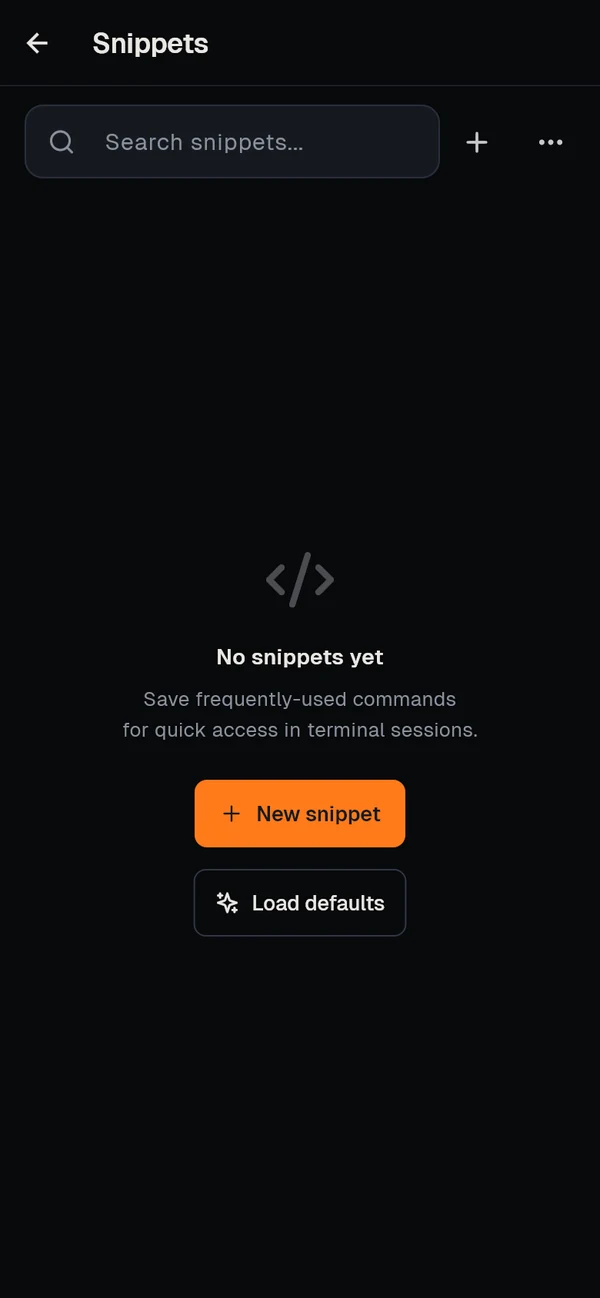
Open Snippets (in More on a phone, a tab of its own on a tablet) and tap New snippet (or +). With no snippets yet, Load defaults adds a set of ready-made ones.
-
Fill in Display name, Command and, if you like, Category (optional). Turn on Confirm before running if you want to be asked first, then save.
-
In a session, open the terminal toolbar’s menu, choose Snippets and tap one. Tapping a snippet in Snippets instead copies the finished command, ready to paste.
A workflow
Section titled “A workflow”-
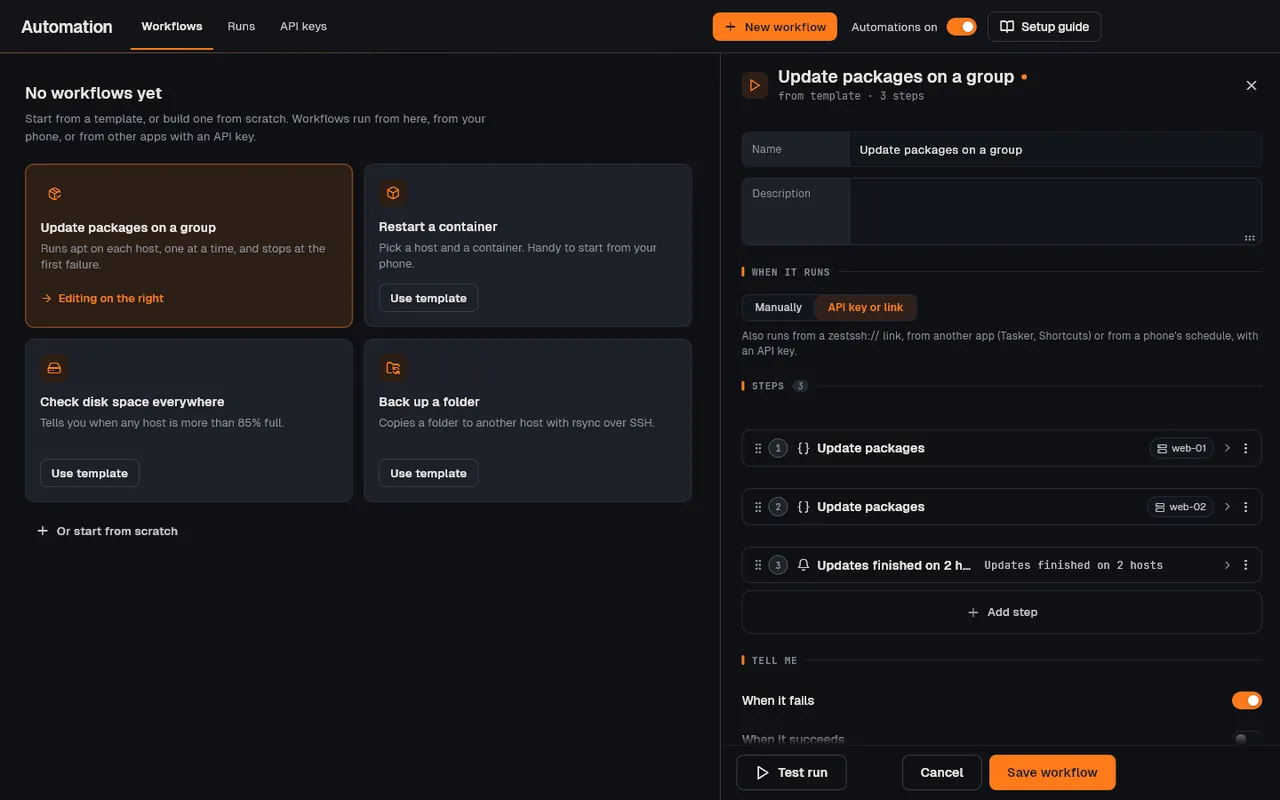
On a computer, open Automation in the side rail; the Workflows tab is open. Pick a template with Use template, or click New workflow. On a phone, open More, then Automation, then Workflows, and tap Create workflow.
-
Give it a Name. Click Add step and pick Snippet, Command, Wait or Notify. A snippet or command step runs on its Target host; under the step’s Advanced you set its Timeout and Continue on error.
-
Under When it runs, choose Manually, or API key or link to let a link, another app or a phone’s schedule start it too. Under Tell me, choose When it fails and When it succeeds.
-
Press Test run to try it, then Save workflow. On a phone, tap Run now on the workflow.
How it works
Section titled “How it works”- Variables are filled safely.
${NAME}asks for a value,${NAME:-default}uses its default,${NAME:secret}hides what you type,$[a,b,c]offers a list, and$[DOCKER],$[SYSTEMD],$[PM2],$[TMUX]or$[SCREEN]read the list from the server of the session. Every value goes to the shell as one single-quoted word, soa; rm -rf ~stays text and never runs as a second command. See Snippets. - A snippet is typed, not run behind your back. In a session ZestSSH types the finished command at the prompt and you press Enter, unless Auto-execute snippets is on. Dangerous command protection checks every finished command for things like formatting a disk or piping a download into a shell, and asks first.
- Run on hosts signs in to each host the way a session would (its network, jump hosts and key), a few at a time, with no terminal, and shows what each host printed and its exit code. See Run on hosts.
- Workflows run step by step. A command or snippet step succeeds on exit code 0. On a failure the workflow stops, or goes on where the step is set to Continue on error (a phone also has Go to). A step finds its snippet by name, so a renamed or deleted snippet stops the workflow with an error naming it. See Workflows.
- What is stored where. Snippets and their categories are in the app’s encrypted database and sync end to end encrypted with the rest of your personal space. Workflows stay on the device you made them on and do not sync. A workflow started from outside the app signs in only with keys allowed for unattended runs; see Automation and API keys.
If something goes wrong
Section titled “If something goes wrong”- “No session is open: open one, or choose Run on… for a host.” The snippet has no Default host and no session is in front. Open a session, or use Run on….
- A list variable asks you to type instead. There is no session to read the list from (Snippets on a phone or tablet), or the server returned nothing (for example Docker is not running).
- A workflow stops at a snippet step. The snippet was renamed or deleted. Pick the snippet again in that step.
- A workflow started by a link or app does nothing. It is set to Manually, or automation is off. See Automation and API keys.