Roles and vaults
In plain words
Section titled “In plain words”A team keeps its shared hosts, keys, snippets and port forwards in vaults. Each vault has its own key and its own list of who may open it. You see only the vaults you can open.
A role says what a person may do: in the team (invite people, remove people, change roles, add vaults) and in each vault. Owner and Admin are built in. Below them come the roles the owners make; a new team has one, Member.
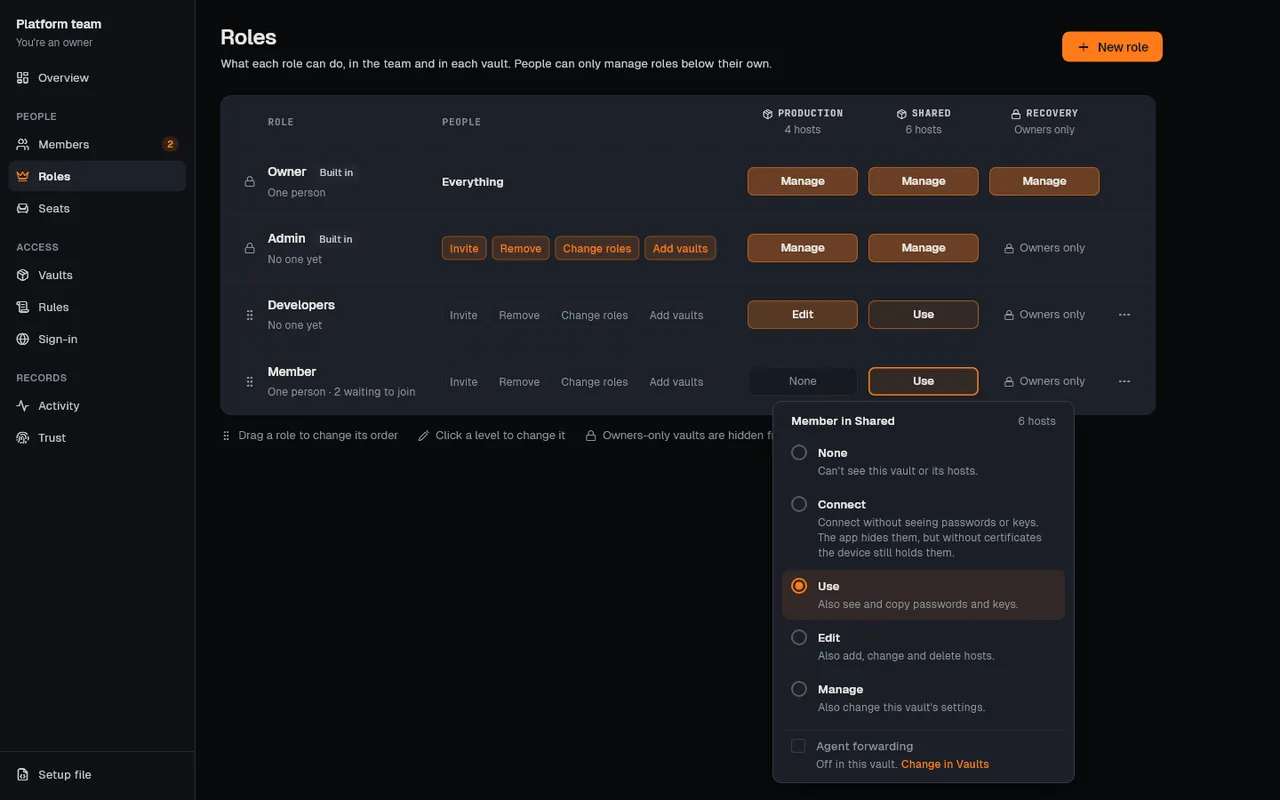
What someone may do in a vault is a level:
- Connect: connect to its hosts. Passwords and keys stay hidden.
- Use: also see and copy its passwords and keys.
- Edit: also add, change and delete hosts.
- Manage: also change the vault’s settings and give it to people below you.
You want this when not everyone should reach every server, or should see every password.
Set it up
Section titled “Set it up”Make a vault
Section titled “Make a vault”-
Open the team’s Team pages, then Vaults, and choose New vault. On a phone, New vault is under the list, and also above the host list.
-
Type a Vault name, for example “Production”. Owners can tick Owners only for a vault no admin or role ever reaches.
-
Choose Create vault.
-
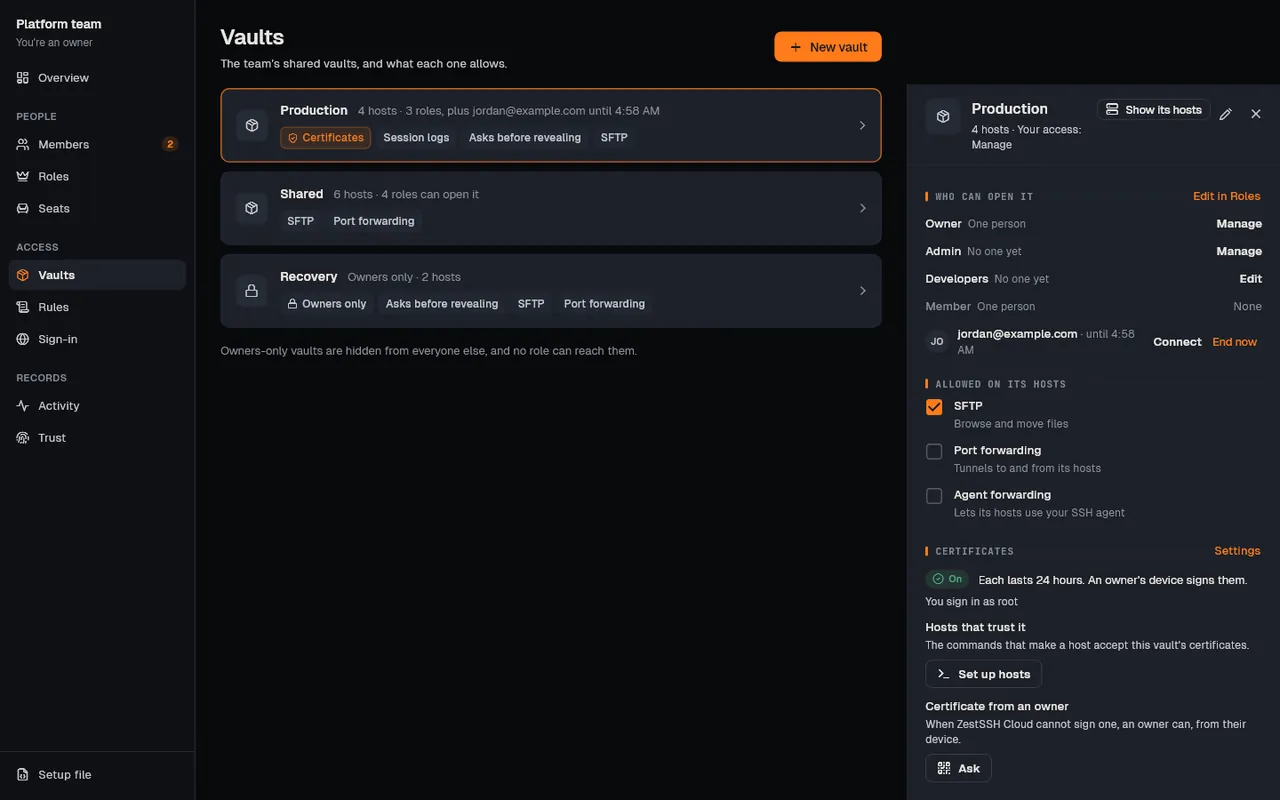
Click the vault (on a phone, open its card) to see Who can open it and what is Allowed on its hosts: SFTP, Port forwarding and Agent forwarding.
Give a vault to a role (owners)
Section titled “Give a vault to a role (owners)”-
Open Roles. Only owners see it.
-
To make a role, choose New role, type its Name, tick its powers under People with this role can, pick a level for each vault under Vaults, and choose Save.
-
To change a level on a computer, click it in the role’s row and pick None, Connect, Use, Edit or Manage. On a phone, choose Edit on the role.
-
If Confirm it’s you appears, choose Sign in again. Changes to roles need a sign-in from the last 10 minutes.
Give one person more
Section titled “Give one person more”- Open Members, open the person, and choose Extra vaults.
- Tick a vault, pick a level, and choose Save. You can give only vaults you Manage, no more than you have there, and only to people below you.
Put hosts in a vault
Section titled “Put hosts in a vault”- On Hosts, pick the vault: on a computer with the vault button at the top of the page (it says All vaults or a vault’s name), on a phone with the vault chips above the host list. New items go to the vault you picked.
- To move a host that is already there, choose Move to vault in the host’s menu.
How it works
Section titled “How it works”- Each vault has its own key. It is 32 random bytes made on a member’s device. Each person who may open the vault gets a copy sealed to their X25519 account key; ZestSSH Cloud stores the copies but cannot open them. Every item is encrypted with AES-256-GCM under the vault’s key and signed by its author. See Vaults, access and roles.
- Access comes from the signed record. Roles, levels, extra vaults and what each vault allows are entries in the team’s record, signed with the author’s Ed25519 key. Every member’s device works out who may do what from the record and refuses an item written by someone whose level did not allow it.
- Losing a vault replaces its key. When someone loses access to a vault, it gets a new key generation, so new items are sealed to a key they never get.
- What Connect hides is an app rule. To connect with a key, the device holds it. Connect stops the app from showing, copying or sending it elsewhere, but it is not encryption. Give Connect to people you would trust with the key on their device, or use team certificates so no shared key is in the vault at all.
- Names are encrypted. Vault names and role names are encrypted with the team’s or the vault’s key. ZestSSH Cloud sees who may open which vault and at which level, not what is in it.
- Owners-only vaults are for keys no admin or role should reach, such as a certificate authority’s key. Owners-only is set when the vault is made, and can be opened up once, never closed again.
- The full design is in the whitepaper, section 13, Teams.
If something goes wrong
Section titled “If something goes wrong”- A member cannot see a vault. Their role gives None there. Change the level on Roles, or give them Extra vaults.
- “SFTP isn’t allowed in this host’s vault.” Someone who manages the vault ticks SFTP under Allowed on its hosts. It is off for everyone, owners too, while it is unticked.
- A key shows “Hidden”. Your level in its vault is Connect. Ask someone who manages the vault for Use, or for access for a set time with Ask for access on the Overview.
- Mosh or Eternal Terminal refuses a hidden key. They need the key as a file, which Connect does not give. Connect with SSH instead.
- “Make another role first: its members need somewhere to go.” The last role cannot be deleted.