Hosts and connecting
In plain words
Section titled “In plain words”A host is a server you saved: its name, its address and port, and the key it signs in with. Once saved, you connect with a double click on a computer or a tap on a phone, and the app remembers the rest.
To reach a server once without saving it, type user@host:port into Quick connect. ZestSSH speaks SSH, Mosh, Eternal Terminal (ET), Telnet and serial, and opens a Local terminal on the device itself.
Set it up
Section titled “Set it up”On a computer
Section titled “On a computer”-
On the Hosts page, press New host (or
Ctrl+Shift+N). The arrow beside it holds the other ways to add: New group, Quick connect, Serial, Import hosts, From a shared host file and Paste a share link.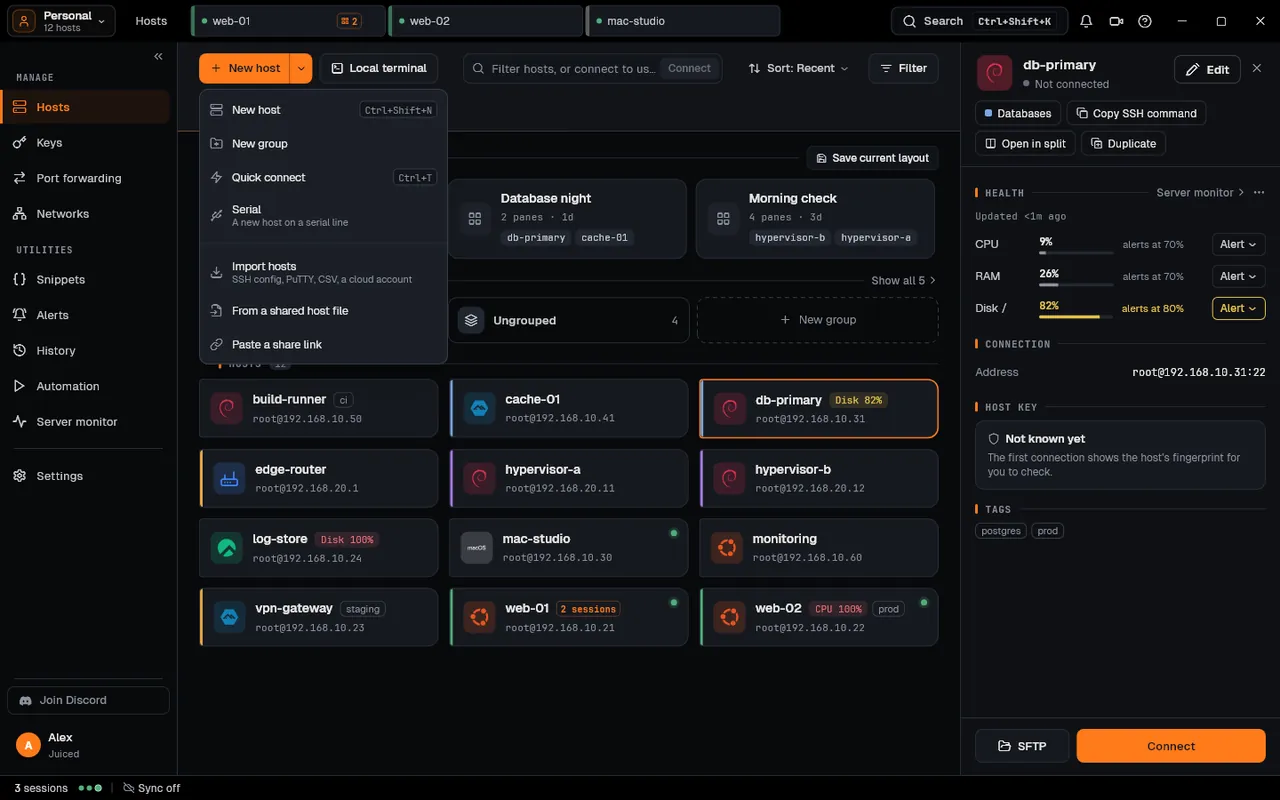
-
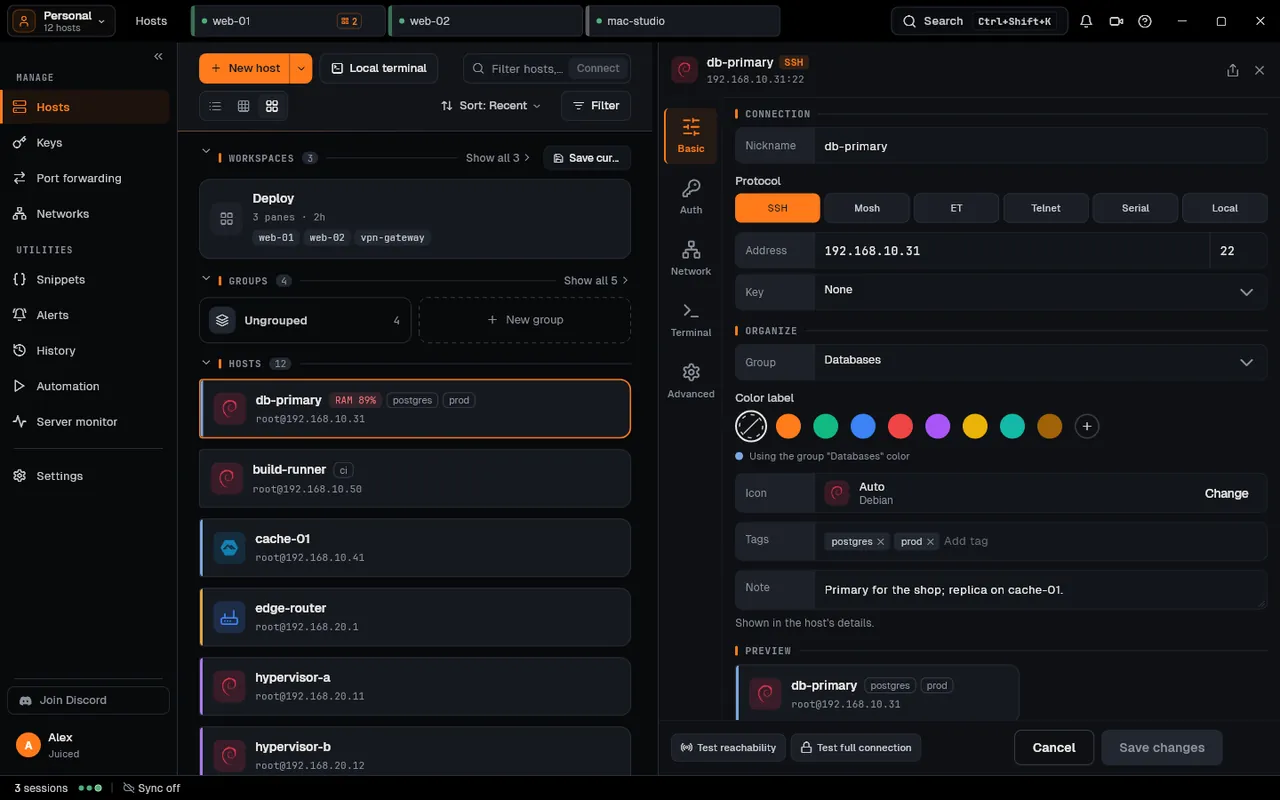
The editor opens beside the page. Under Connection, give it a Nickname, keep SSH as the Protocol (or pick Mosh, ET, Telnet, Serial or Local), and type the Address and port.
-
Pick a Key: the SSH key or saved password it signs in with, or Create new key. Under Organize, put it in a Group, give it a Color label and Tags if you like.
-
Before saving, Test reachability checks the address answers, and Test full connection signs in for real. Then press Save connection.
-
Double-click the host to connect, or click it once and press Connect in its panel.
On a phone or tablet
Section titled “On a phone or tablet”-
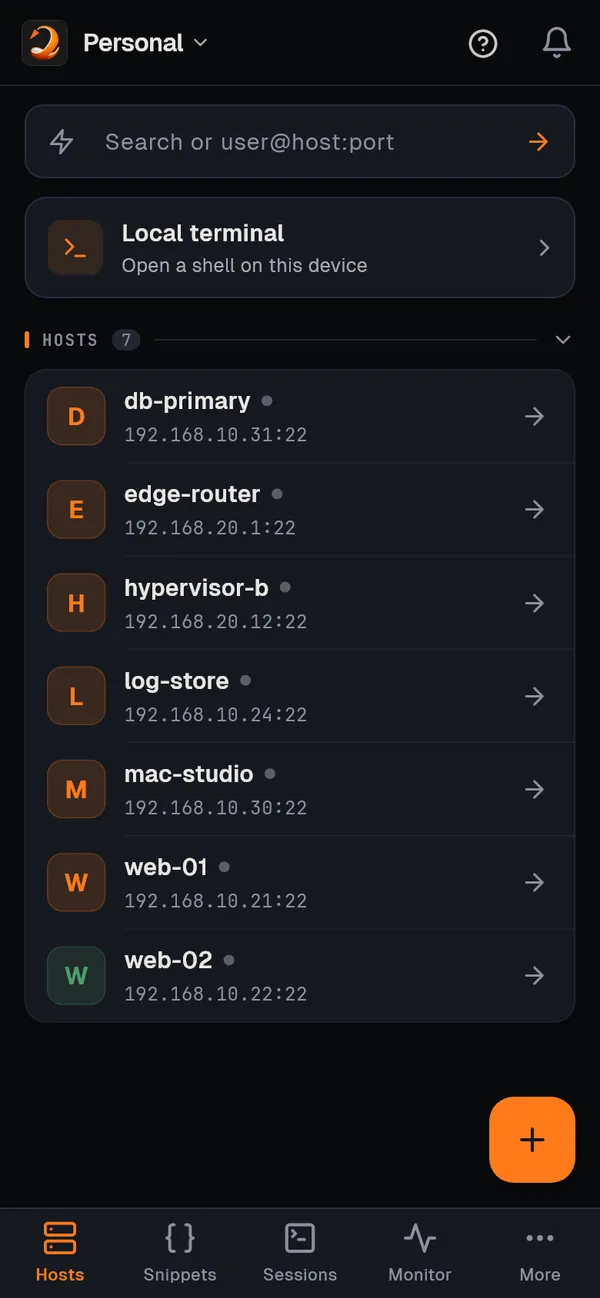
On the Hosts tab, tap + and choose New host. The New connection form opens.
-
Fill in the Nickname, Address, port and Key, and tap Save connection. The rest (network rules, Wake on LAN, options) is under Show advanced options.
-
Tap the host to connect. For a server you will not keep, type
user@host:portinto Search or user@host:port at the top. -
On a phone, the info button at the end of a host’s row opens the host’s page: Connect and Files, its health, recent sessions, port forwards, how it connects, its tags and its note.
-
To put hosts in your own order, tap the arrows button at the end of the chips (Arrange) and drag each host by its handle within its group; Done leaves. The order syncs with your computers.
The first connection
Section titled “The first connection”The first time, ZestSSH shows New host key with the server’s fingerprint. Compare it with the server’s own (ssh-keygen -lf /etc/ssh/ssh_host_ed25519_key.pub on the server), then press Trust on a computer or Accept & save on a phone.
How it works
Section titled “How it works”- The connection. ZestSSH opens TCP to the host and port, agrees the key exchange and ciphers, checks the host key, signs in, then opens a terminal of type
xterm-256color. Its SSH engine iszest_ssh_core, an open-source fork of dartssh2. Strict key exchange (the Terrapin fix) is used when the server supports it, and the session keys are renewed after 1 GiB. See SSH and the whitepaper, section 8, SSH protocol support. - Host keys are trust on first use, as in OpenSSH. The trusted key is saved per host and port; a different key later, or a key of another type, stops the connection with Host key changed, and Cancel and disconnect is the default. See Host key verification.
- What is stored where. Hosts live in the app’s database, encrypted with SQLCipher under a key in the system’s secure storage. Passwords and private keys sit in that secure storage, never in plain text. If you use sync, hosts are sealed on the device before they leave it. See the whitepaper, section 9, Local data protection.
- Your connections are direct. SSH goes straight from your device to the server; ZestSSH’s servers never see it.
- Several keys per host. Add another key under the Key field keeps others the host can sign in with, offered as Connect as (right-click on a computer, long press on a phone).
- Wake on LAN. Put the machine’s MAC address (optional) under Wake on LAN in the editor’s Advanced part, then use Wake (WoL) from the host’s menu or panel (Wake on a phone). See Wake-on-LAN.
- The full walk through the form, the Hosts toolbar, sorting, filters and selecting many hosts is in First connection.
If something goes wrong
Section titled “If something goes wrong”- The connection fails. The error says what went wrong and what to try, with Retry and Technical details; Copy details copies it with names and secrets taken out. See Connection issues.
- Host key changed. The server was rebuilt, another machine answers at that address, or someone is in the middle. Press Trust new key only when you know why.
- An old server will not agree on algorithms. Turn on Compatibility mode (on a computer, Auth in the editor’s side rail; on a phone, under Show advanced options).
- It asks for a password every time. Tick Save this password in Enter password, or move to a key: see Keys.