Automation and API keys
In plain words
Section titled “In plain words”Automation lets something outside the terminal run work on your saved hosts: a zestssh:// link, an Android app such as Tasker or MacroDroid, a scheduled task on Android, or an iOS Shortcut. ZestSSH signs in, runs the command without opening a tab, keeps what it printed and its exit code, and disconnects.
Every request carries one of your API keys, so nothing else on your device can use it. A link always asks you before it runs. Automation needs Squeezed and is off until you turn it on.
Set it up
Section titled “Set it up”On a computer
Section titled “On a computer”-
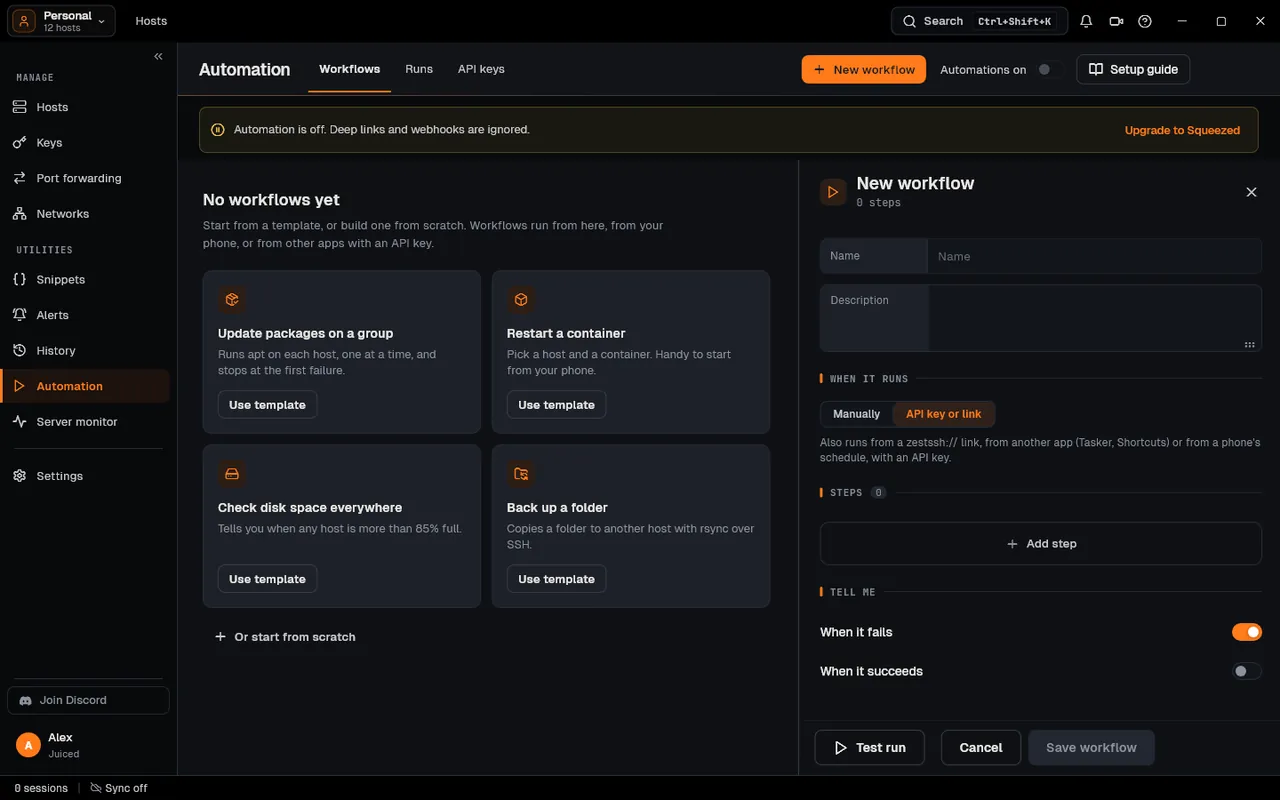
Open Automation in the side rail.
-
Click the Automations on switch in the page’s top band, and confirm Enable external automation? with Enable. Without Squeezed the page offers Upgrade to Squeezed instead.
-
Open the API keys tab and click Create API key. Give it a Label, choose Expires in and a Scope (All connections, or one host with Specific connection), then click Create.
-
In Save your API key, use Copy to clipboard, tick I’ve copied this key somewhere safe, then click Done. The key is shown this once only.
-
For every key your hosts sign in with, open it in Keys, choose Edit and turn on Allow unattended runs. Connect to each host yourself once, so its host key is trusted.
-
Use the key in a link, for example
zestssh://execute?connection=web-01&command=uptime&key=YOUR_KEY. The Runs tab lists every run.
On a phone or tablet
Section titled “On a phone or tablet”-
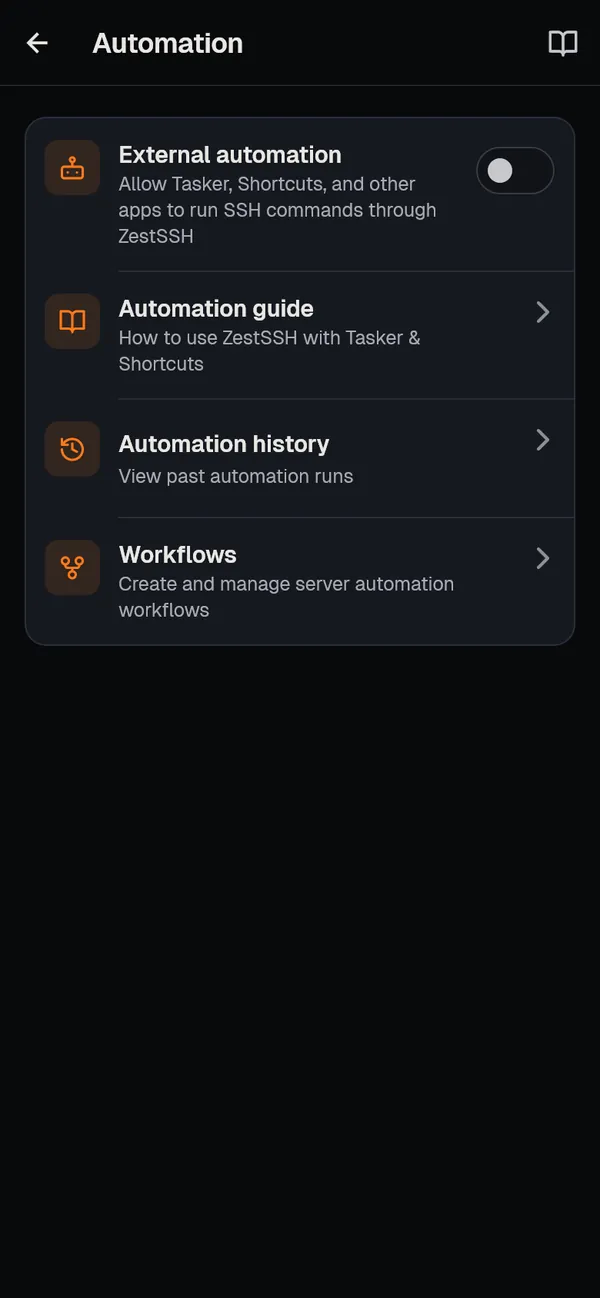
Open More, then Automation, and turn on External automation. Confirm with Enable.
-
Tap API keys, then + (or Create API key). Give it a Label and an Expiration, tap Create, copy it with Copy to clipboard, tick I’ve copied this key somewhere safe and tap Done.
-
Allow unattended runs on your keys as in step 5 above, and connect to each host once.
-
On Android, send an intent from Tasker or MacroDroid, for example the action
com.affluentlabs.zestssh.EXECUTEwith the extraskey,connection_idandcommand. Automation wizard builds the link or intent for you. Scheduled tasks (Android only) runs a command, a snippet or a workflow on a timer: tap +, fill it in and tap Schedule task. -
On iPhone and iPad, open the Shortcuts app and add Run SSH Command, Run SSH Snippet or Connect via SSH, with your API key in the action.
-
Automation history lists every run, with its output and exit code.
How it works
Section titled “How it works”- Four actions.
executeruns one command,snippetruns a saved snippet by name (withvar_NAME=valuefilling its variables),batchruns one command on up to 25 hosts, at most 4 at once, andworkflowruns a saved workflow. Results can be trimmed withgrep,headandtail. See Automation engine and API endpoints. - A link never runs by itself. Any web page can open a
zestssh://link, so ZestSSH shows Run this from a link? with the command and the host, and runs nothing until you tap Run. Android intents and scheduled tasks run with nobody asked, which is why they sign in only with keys switched to Allow unattended runs, trust only host keys this device already trusts, and answer no prompt. - API keys are kept as a hash. A key is 48 random letters and digits (about 285 bits) from the system’s secure generator. ZestSSH stores only its SHA-256 hash and last 4 characters in the system’s secure storage (Android Keystore, the Keychain, or the computer’s own store), compares hashes in constant time, rate limits requests, and checks expiry and scope. A key scoped to one host refuses every other host and every workflow. Keys belong to the device that made them. See API keys and the whitepaper, section 10, Automation security.
- Webhooks. An Android intent can carry a
callbackwith anhttps://address; ZestSSH posts the result there as JSON. Local and private addresses are refused and redirects are not followed. - What is stored where. The automation history (the newest 500 runs) stays on the device and does not sync. Workflows do not sync either.
If something goes wrong
Section titled “If something goes wrong”- “Automation is off, so the command was not run.” Turn on Automations on (computer) or External automation (phone). Without Squeezed it cannot be turned on.
- “Nobody is there to answer: a run by itself signs in only with what is saved, with keys allowed for unattended runs.” Turn on Allow unattended runs for the host’s key, and for its jump host’s key, and save the key’s passphrase.
- The key is refused. It expired, was deleted, belongs to another device, or is scoped to another host. Make a new one: a key cannot be shown again.
- A workflow from a link is “Not run: this workflow is turned off.” Set its When it runs to API key or link, or switch it on in the phone’s list.
- A link is refused. Links longer than 2,048 characters, or with a value longer than 256, are refused: put a long command in a snippet.
Related guides
Section titled “Related guides”- Snippets and workflows
- Keys
- Alerts
- Tasker integration, MacroDroid and iOS Shortcuts, step by step