Certificates
In plain words
Section titled “In plain words”With plain keys, your public key has to be in every server’s authorized_keys. With certificates, a certificate authority (CA) signs your key, and every server that trusts the CA lets you in. Nothing to copy to each server.
ZestSSH does this two ways:
- Your own certificates: import a certificate your CA issued, or make one in the app with a CA key you hold. This works on every plan.
- A team vault’s certificate authority: each member’s device has a key of its own that never leaves it, and an owner’s device signs a short-lived certificate for it. No shared password or key for those hosts has to sit in the vault. This comes with the Team plan.
Two more team features keep the trust tight: Approved devices only lets members in only from devices the team approved, and team-pinned host keys let an editor check a server’s key once for everyone.
Set it up
Section titled “Set it up”Your own certificate, on a computer
Section titled “Your own certificate, on a computer”-
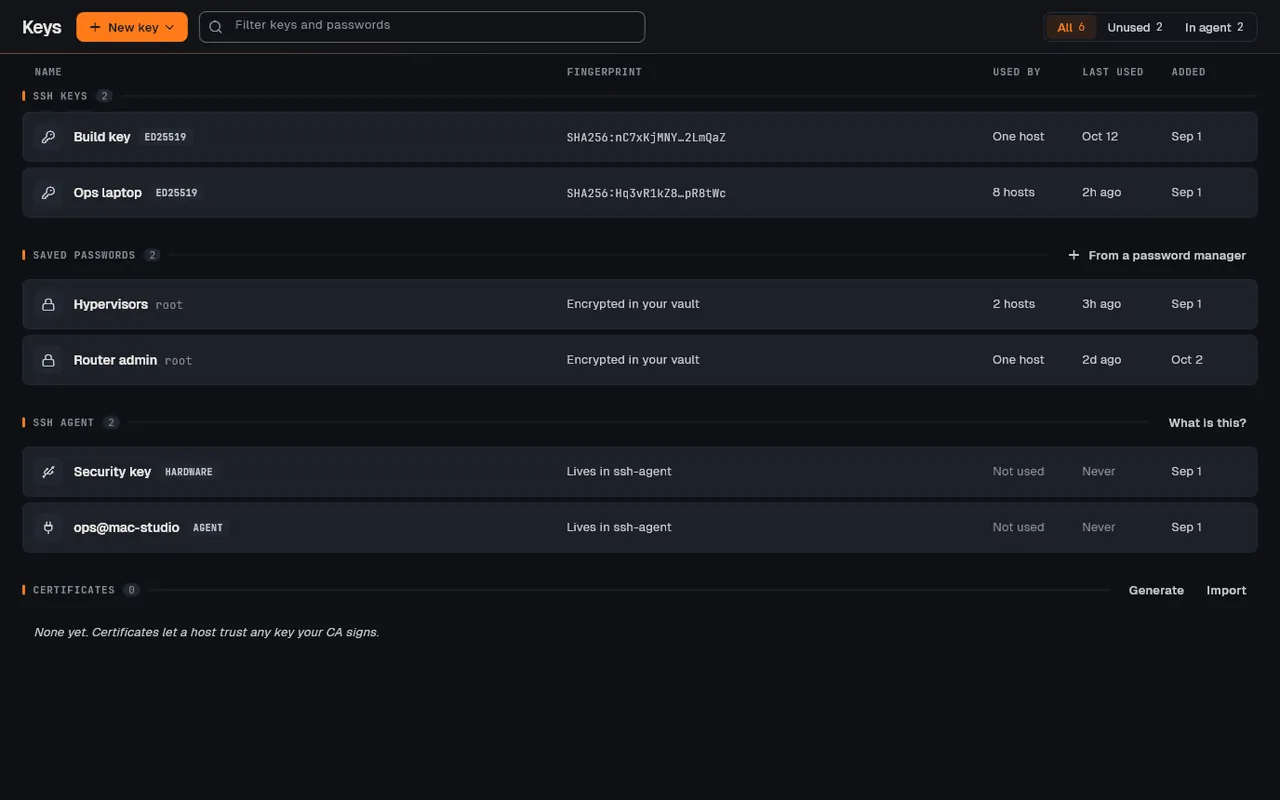
Open Keys in the sidebar. On the Certificates line, choose Import (or Generate, if you hold the CA’s key in ZestSSH).
-
To import, paste the
id_*-cert.publine in Import SSH certificate, or use Pick file…. Check what ZestSSH read: Principals, Valid before and the CA’s fingerprint. -
Under Attach to key, pick the key it was issued for and choose Attach certificate. To generate instead, pick the Key to certify and the Signed by (CA key), type the Principals, pick Valid for, and choose Generate & attach.
-
Make each server trust the CA’s public key with
TrustedUserCAKeysin itssshd_config. Your phone gets the certificate with its key through sync.
A team vault’s certificate authority (owners)
Section titled “A team vault’s certificate authority (owners)”-
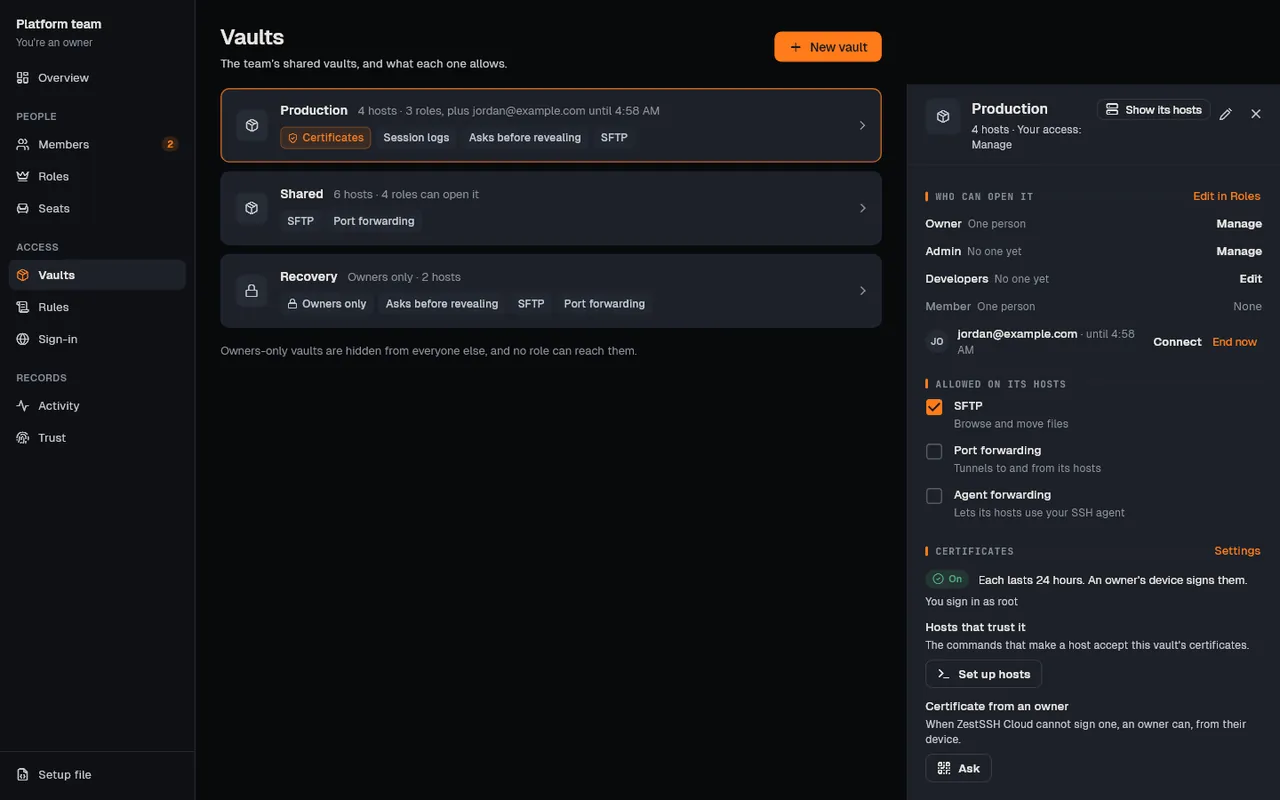
Open Team, then Vaults, and open the vault (on a phone, its card; with more than three vaults, What it allows).
-
Under Certificates, choose Set up certificates. Pick where to Keep the authority’s key in (a vault only owners open, or A new vault only owners open), how long Each certificate lasts (1 hour, 8 hours, 24 hours or 7 days), and the User names each role signs in as. Choose Turn on.
-
Under Hosts that trust it, choose Set up hosts, check the authority key’s fingerprint, choose Copy commands, and run them as root on each host of the vault.
-
Give the vault’s hosts a key whose Authentication is Team certificate: on Keys, with that vault picked on Hosts. It holds nothing secret, so one such key serves everyone.
Members then just connect. Their device asks for a certificate when it has none and waits up to 20 seconds for an owner’s device to sign it.
Approved devices and pinned host keys
Section titled “Approved devices and pinned host keys”-
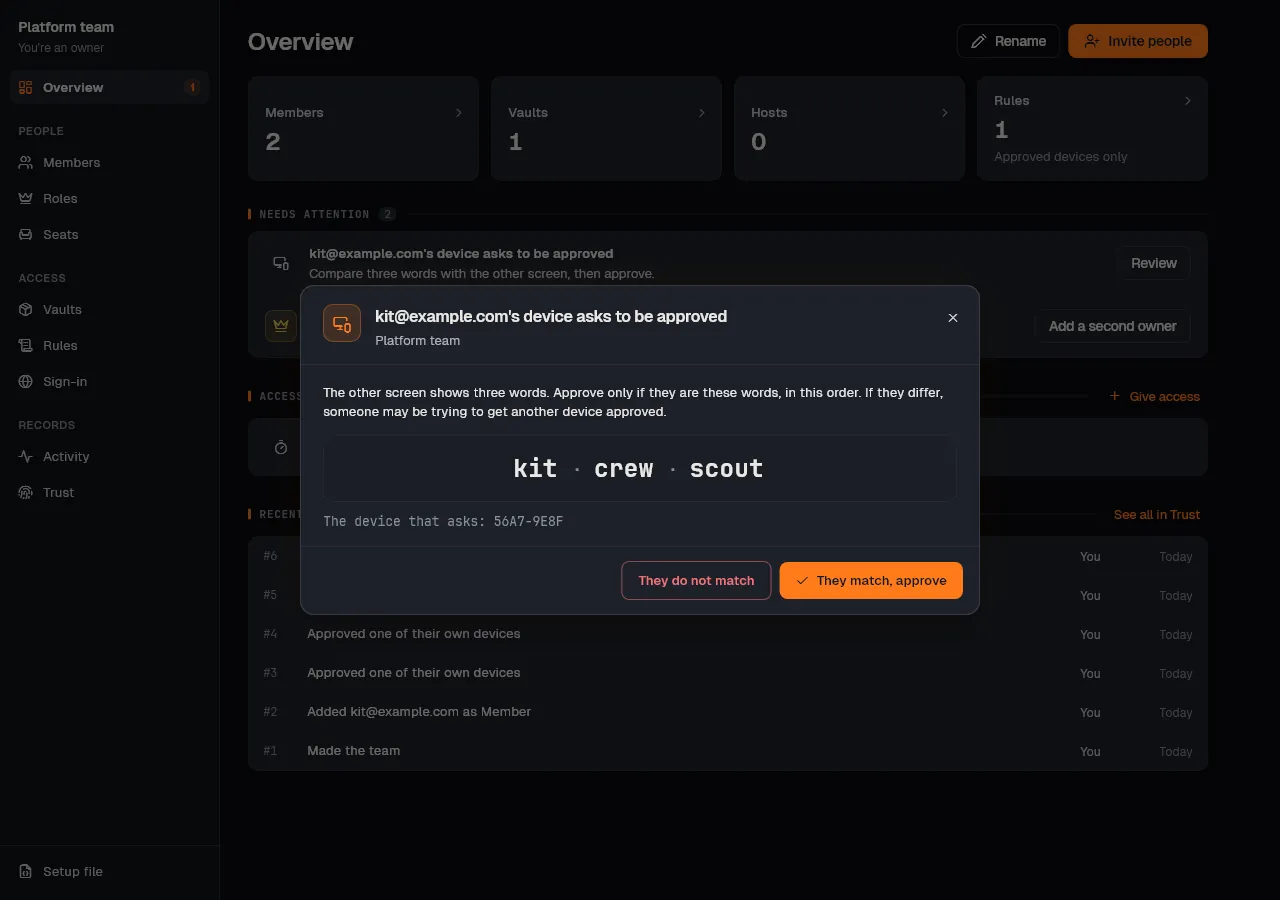
Approved devices only is a team rule (see Team rules). A new device asks with Ask to be approved; someone approved compares three words on both screens and chooses They match, approve.
-
To pin a host’s key for the whole vault, connect to it with Edit in its vault. In New host key, keep Trust this key for everyone in the vault ticked, check the fingerprint against the host, and choose Trust (on a phone, Accept & save).
How it works
Section titled “How it works”- OpenSSH user certificates. During sign-in ZestSSH offers the certificate in place of the bare public key (for example
ssh-ed25519-cert-v01@openssh.com); the signature is still made by your private key. The server checks that the CA signed it, that it is in date, and that your user name is among its principals. See OpenSSH certificates. - No signing service. A team authority’s Ed25519 private key is made on an owner’s device and kept as an item of an owners-only vault, encrypted with that vault’s key. ZestSSH Cloud never holds it and never signs. Each member’s device makes its own Ed25519 SSH key for the team, never synced, and asks with a request signed by the member’s account key.
- An owner’s device checks before it signs: the authority is on, the member is active and may open the vault now, the request uses their current keys and is under a day old, and their role signs in as someone (and the device is approved, where that rule is on). A certificate names only the role’s user names, starts five minutes before signing, never outlasts the member’s access, and allows port and agent forwarding only where the vault does. The member’s device renews it at half its life. See Certificate authority.
- No revocation. A certificate runs until it ends: shorter is safer. When someone who could open the authority’s key loses access, owners see New key needed: someone who could open its key no longer can and give the authority a new key, then run Set up hosts again.
- Approved devices each have an Ed25519 key kept in the system’s secure storage, in no sync or backup; the team’s record lists each member’s approved device keys, and approving compares three words (33 bits). See Approved devices.
- Pinned host keys are vault items, sealed with the vault’s key and signed by whoever pinned them, and a device takes a pin only from someone who could edit the vault. A different key stops the connection with Not the key your team pinned. See Team-pinned host keys.
- The full design is in the whitepaper, section 13, Teams, and section 8, SSH protocol support.
If something goes wrong
Section titled “If something goes wrong”- The server refuses the certificate. It must list your CA in
TrustedUserCAKeys, and your user name must be among the certificate’s Principals. Compare the CA fingerprint ZestSSH shows with the one the server trusts. - The import refuses the certificate. It was issued for another key, or it is a host certificate, which names a server and cannot sign you in.
- The certificate ran out. ZestSSH says when, from 14 days before. Have a new one issued, then Import or Generate again.
- A team certificate does not come. An owner’s device has to be running to sign it. When ZestSSH Cloud cannot carry the request, use Ask on the vault’s Certificate from an owner row and hand the owner the code or the text; they choose Sign a request, then Sign and hand back, and you choose Use it.
- Not the key your team pinned. Do not connect. Run the command it shows on the host to print its own fingerprint, and ask someone who edits the vault to check it.